# Welcome to Cloudimage
Cloudimage helps you store, optimize, transform, and deliver your media at scale.
Leverage Cloudimage to automatically compress and accelerate images, videos, PDFs, CSS, and JS over CDN, ensuring faster websites, smoother apps, and better user experiences.
#### What you can do with Cloudimage
* **Optimize and deliver any media**: images, videos, PDFs, CSS, and JS with on-the-fly compression and CDN acceleration.
* **Integrate pixel-perfect images and videos** on your website thanks to powerful Responsive Libraries.
* **Create reusable image Presets**: use the Asset Variation Builder to visually build transformations (crop, resize, background removal, face blurring, etc.) and save them for consistent formatting.
* **Centralize your assets**: upload, preview, edit, and enrich files directly in the Asset Library.
* **Boost SEO, GEO, and accessibility**: generate smart alt text and auto-tags automatically with Visual AI.
#### Why Cloudimage?
* No more slow-loading websites caused by heavy visuals.
* No need for complex scripts or hours of manual Photoshop edits.
* Easy tools for marketers or e-commerce managers, and developers alike.
* Future-proof workflows: from SEO-ready alt text to adaptive video streaming.
{% hint style="info" %}
Cloudimage is provided by [Scaleflex](https://scaleflex.com) alongside the Visual Experience Platform, a collaborative suite of solutions for media management at scale
{% endhint %}
#### How does it work?
Cloudimage URL Format:
{% hint style="success" %} **//token**.cloudimg.io/**original\_image\_url****?****operations****&****filters****&****watermarks**
{% endhint %}
| **token** | Your Cloudimage customer token. Subscribe [here](https://www.cloudimage.io/en/registration) to get one. You can also [ask us](https://www.cloudimage.io/en/contact-us) for a customized token. |
| ---------------------------------------------------------------------------------------- | ---------------------------------------------------------------------------------------------------------------------------------------------------------------------------------------------------------------- |
| **original\_image\_url** | That's an easy one :) |
| [**operations**](/transformations/image-operations) | Image manipulation operations like **width**, **height**, **crop**, **fit**, **rotate**, **trim**. For a full list, see [Image watermarking](/transformations/image-watermarking). |
| [**filters**](/transformations/image-filters) | Use filters like **contrast**, **pixellate**, **blur**, **greyscale** and **sharpen** to apply different effects on your image. For a full list, see [Image filters](/transformations/image-filters). |
| [**watermarks**](/transformations/image-watermarking) | Cloudimage can place a watermark in your images if you want to protect them from copying, or tag them with a custom text. More details in the [Image watermarking](/transformations/image-watermarking) section. |
Cloudimage supports chaining multiple transformations in a single URL, such as crop, resize, format conversion, filters, or watermarking. Here is the step-by-step flow for your asset transformations:
1. Cloudimage downloads your original asset (image, video, PDF, CSS, JS).
2. On-the-fly, it applies a selection of 50+ transformations and filters.
3. Optimized files are served worldwide via a rocket-fast CDN.
{% hint style="danger" %}
If you host your images on a Web Server, Image Repository, or Storage Bucket sitting behind a Firewall or protected by authentication, make sure your images are accessible over HTTP(S) and that you have whitelisted our infrastructure and are in possession of the required credentials. Otherwise, Cloudimage servers will not be able to download the originals.
{% endhint %}
Examples:
```
https//token.cloudimg.io/{origin_image_url}?func=cropfit&w=500&h=350&bg_colorize=navy&contrast=10&q=90
```
| Preview | Cloudimage URL syntax |
| -------------------------------- | ----------------------------------------------------------------------------------------------------------------------------------------------------------------------------------------------------------------------------------------------------------------------------------------------------------------------------------------------------------------------------------------------------------------------------------------------------------------------------------------------------------------------------------------------------------------------------------------------------------------- |
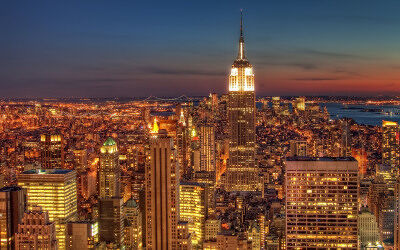
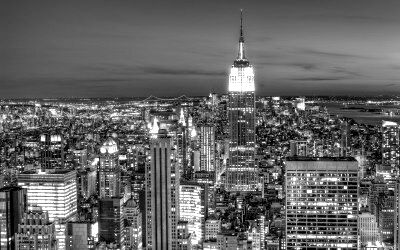
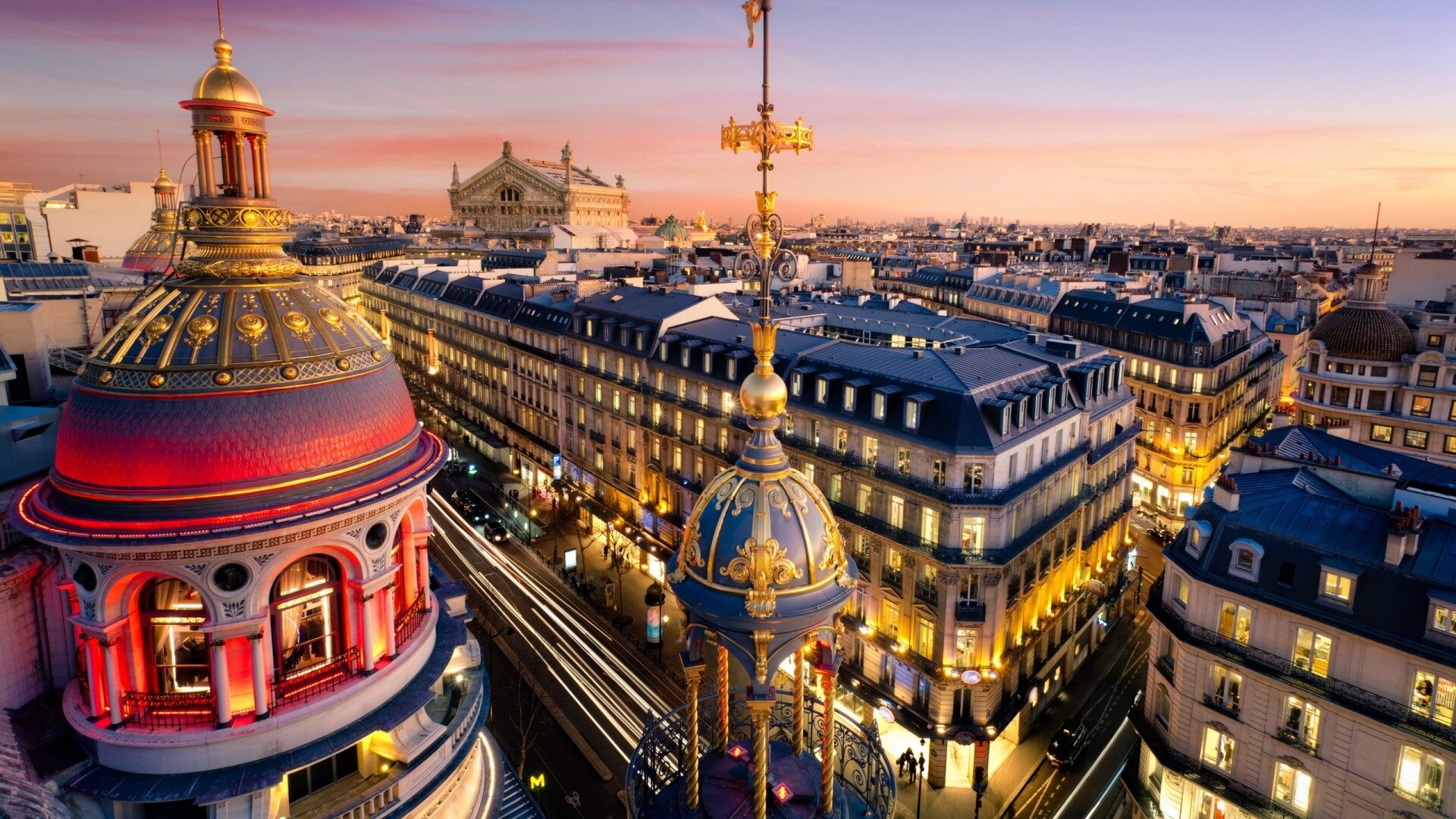
|  | [/samples.scaleflex.com/ny\_doc.jpg?**func=cropfit**&**w=500**&**h=350**&**bg\_img\_fit=1**&**bg\_colorize=navy**&**bg\_opacity=0.5**&**bg\_blur=20**](https://doc.cloudimg.io/https://samples.scaleflex.com/ny_doc.jpg?func=cropfit\&w=500\&h=350\&bg_img_fit=1\&bg_colorize=navy\&bg_opacity=0.5\&bg_blur=20) |
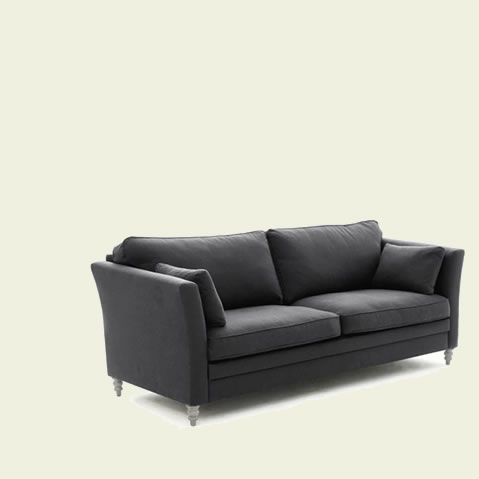
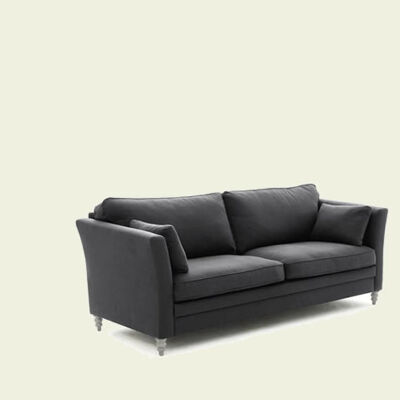
|  | [/samples.scaleflex.com/flat1.jpg?**w=450**&**q=90**&**contrast=10**&**saturate=30**&**wat=1**&**wat\_gravity=northeast**&**wat\_scale=25**&**wat\_pad=10**](https://doc.cloudimg.io/https://samples.scaleflex.com/flat1.jpg?w=450\&q=90\&contrast=10\&saturate=30\&wat=1\&wat_gravity=northeast\&wat_scale=25\&wat_pad=10) |
Preview transformations instantly in the UI, save them as presets, and deliver them globally through our premium CDN infrastructure.
We have documented the most common resizing functions here. Cloudimage supports many more and we can even build them for your specific use-case, please [contact us](https://www.cloudimage.io/contact-us) if you don't find your luck!
# Input formats
We support all the major image formats, and a large number of more confidential ones.
We are obviously expanding our support to include any new significant formats being created. As of today, we have full support for the following origin formats and the ability to apply transformations for them:
| Input format supported |
| ---------------------------------------- |
| Adobe Photoshop Document (PSD) |
| AVIF - AV1 image format |
| Bitmap (BMP) |
| Encapsulated PostScript (EPS) |
| Graphics Interchange Format (GIF) |
| High Efficiency Image File Format (HEIC) |
| Icon (ICO) |
| JPEG-compressed images |
| JPEG2000-compressed images |
| Portable Document Format (PDF) |
| Portable Network Graphics (PNG) |
| Scalable Vector Graphics (SVG) |
| Tag Image File Format (TIFF) |
| WebP image format |
# Asset Variation Builder
Create and preview image transformations directly in the Cloudimage UI - no code needed
The Asset Variation Builder (AVB) lets you create and preview image transformations directly in the Cloudimage UI — no coding needed. Non-Developers using Cloudimage can easily gain control with instant previews of future image transformations before creating a [preset](/setup/shortening-urls/presets).
While building your URL transformations, you can easily spot the active parameters in the different categories thanks to a blue dot: Format, Adjust
Once satisfied, save the transformation as a preset to apply consistent templates across all your images. Every adjustment is shown live in the Asset Library in "Asset Details" / "Variations", so you see the exact output before saving.
**Preview image transformations**\
Stop guessing URL parameters: visually build your transformation, preview results in real time, and save as reusable presets. These presets ensure consistency, speed up content workflows, and empower non-technical teams to manage image variants independently.
**Supported features in the AVB:**
* **Image compression & format**
* Automatic best format or force WEBP, JPEG, PNG, GIF
* Quality settings (lossless, adjustable compression)
* **Image operations**
* Resize by width & height (with enlargement prevention)
* Cropping options: automatic gravity, positionable, focal point, face crop, aspect ratio crop, face hide
* Fit, Cropfit, Background color, Bound, Boundmin, Cover
* Flip, Rotate, Rounded corners, Trim
* **AI operations**
* Background removal ⚡️
* Face blurring ⚡️
* **Image filters**
* Adjustments: brightness, contrast, saturation, blur, sharpen
* Colorize: overlay, grayscale, sepia, pixelate, duotone, invert
* **Watermarking**
* Static watermark
* Dynamic watermark
{% hint style="info" %}
The operations marked with a ⚡️ are powered by Visual Operations Credits; full details on consumption rates can be found here: [Visual Operation Credits table](https://docs.cloudimage.io/account-management/usage#visual-operation-credits-table)
{% endhint %}
# Image operations
Basic image resizing operations
Resizing operations enable the dynamic generation of image transformations to meet various web delivery use cases. Operations focus on the image size while [Image filters](/transformations/image-filters) allow to modify the image itself.
Most of the on-the-fly image transformations can be configured using the [Asset Variation Builder](/transformations/asset-variation-builder), an in-line URL builder to preview each image transformation instantly.
## Available operations
resizes the image to the desired dimensions without distorting it while cropping out portions of the image if necessary, to achieve the desired aspect ratio. You need to also provide both width and height
gravity=X
defines the desired "focal point" of the image. Used with func=crop, this will set the part of the image which will be retained. With the func=fit resize mode, it will set the placement of the image within the new canvas X = [north | south][east | west] | auto | smart | trim | X,Y
resizes the image while automatically choosing between the crop and fit resize modes depending on the origin image dimensions, the desired dimensions, and the other parameters in the transformation URL
resizes the image to dimensions no larger than the ones specified in the transformation URL. The resulting image might not match both width and height depending on the desired aspect ratio
resizes the image to dimensions no larger than the larger one specified in the transformation URL. The resulting image might not match both width and height depending on the desired aspect ratio
{% hint style="info" %}
Do not hesitate to [contact us](https://www.cloudimage.io/en/contact-us) if you need any additional operations not listed above
{% endhint %}
## Resize functions
When you resize an image by specify both **width** and **height**, the original image proportions can be either ignored or maintained. You may also choose to add padding to the image to fill the blank space (extending the canvas).
Cloudimage supports the following resize functions (defined with the **func** parameter):
### Crop
Keeps image proportions, cutting the image to fit the defined width and height; see [Crop](/transformations/image-operations/crop)
{% hint style="warning" %}
This resizing function removes parts of the image and is the default behavior when both **width** and **height** are defined. Read further for other resizing functions.
{% endhint %}
| Preview | Syntax |
| -------------------------------- | --------------------------------------------------------------------------------------------------------------------------------------------------- |
|  | [/samples.scaleflex.com/hotel.jpg?w=400\&h=200\&func=crop](https://doc.cloudimg.io/https://samples.scaleflex.com/hotel.jpg?w=400\&h=200\&func=crop) |
### Fit
Resizes the image, keeping proportions and extending the canvas (by adding padding) to satisfy the desired dimensions; see [Fit](/transformations/image-operations/fit)
| Preview | Syntax |
| -------------------------------- | --------------------------------------------------------------------------------------------------------------------------------------------------------------------------------------------------------------------------------------------------------------------------------------------------------------------------------------- |
|  | [/samples.scaleflex.com/hotel.jpg?**w=400**&**h=200**&**func=fit**&**bg\_color=000**](https://doc.cloudimg.io/https://samples.scaleflex.com/hotel.jpg?w=400\&h=200\&func=fit\&bg_color=000) |
### Cropfit
Performs either [#crop](#crop "mention")or [#fit](#fit "mention") based on the image dimensions, aspect ratio and transformation parameters; see [Cropfit](/transformations/image-operations/cropfit)
{% hint style="warning" %}
This resizing function may remove (crop out) parts of the image.
{% endhint %}
| Preview | Syntax |
| -------------------------------- | ----------------------------------------------------------------------------------------------------------------------------------------------------------------------------------------------------------------------------------------------------------------------------------------------------------------------------------------------------------------------------------------------------------------------------------------------------------------------------------------------------- |
|  |
|
### Bound
Fits image in a box of defined size without adding padding; see [Bound](/transformations/image-operations/bound)
| Preview | Syntax |
| -------------------------------- | ------------------------------------------------------------------------------------------------------------------------------------------------------------------------------------------------------------------------------------------------------------------------ |
|  | [/samples.scaleflex.com/hotel.jpg?**w=400**&**h=200**&**func=bound**](https://doc.cloudimg.io/https://samples.scaleflex.com/hotel.jpg?w=400\&h=200\&func=bound) |
{% hint style="info" %}
The **boundmin** operation is a special case of bound where the smaller dimension is respected instead of the larger one; see [Boundmin](/transformations/image-operations/boundmin)
{% endhint %}
### Cover
Resizes the image to the given **width** and **height**, ignoring original image proportions, thus distorting the image; see [Cover](/transformations/image-operations/cover)
| Preview | Syntax |
| -------------------------------- | ------------------------------------------------------------------------------------------------------------------------------------------------------------------------------------------------------------------------------------------------------------------------ |
|  | [/samples.scaleflex.com/hotel.jpg?**w=400**&**h=250**&**func=cover**](https://doc.cloudimg.io/https://samples.scaleflex.com/hotel.jpg?w=400\&h=250\&func=cover) |
{% hint style="info" %}
For troubleshooting purposes, use the **ci\_info=1** operation to view details about resizing and compression, for example, [/sample.li/hotel.jpg?**w=400**&**ci\_info=1**](https://doc.cloudimg.io/sample.li/hotel.jpg?w=400\&ci_info=1)
{% endhint %}
# Width and height
Proportionally resize an image to the desired width or height
Resizes an image to a specified width or height while preserving its original aspect ratio. You need to specify the **`width`** or **`height`** parameter in pixels. After transformation, the image will be compressed and delivered via CDN.
**width** | **w**
**height** | **h**
## Examples
| Preview | Syntax |
| ------------------------------------------------------------------- | ----------------------------------------------------------------------------------------------------------------------------------------------------------------------------------------------------------------- |
|  | [/samples.scaleflex.com/birds.jpg?**w=600**](https://doc.cloudimg.io/https://samples.scaleflex.com/birds.jpg?w=600) |
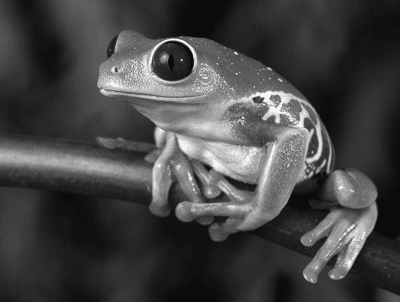
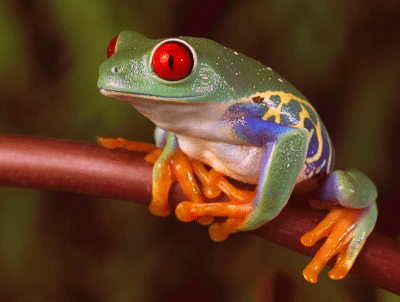
|  | [/samples.scaleflex.com/frog.png?**width=415**](https://doc.cloudimg.io/https://samples.scaleflex.com/frog.png?width=415) |
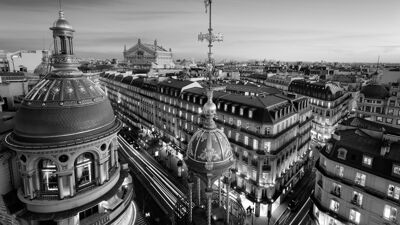
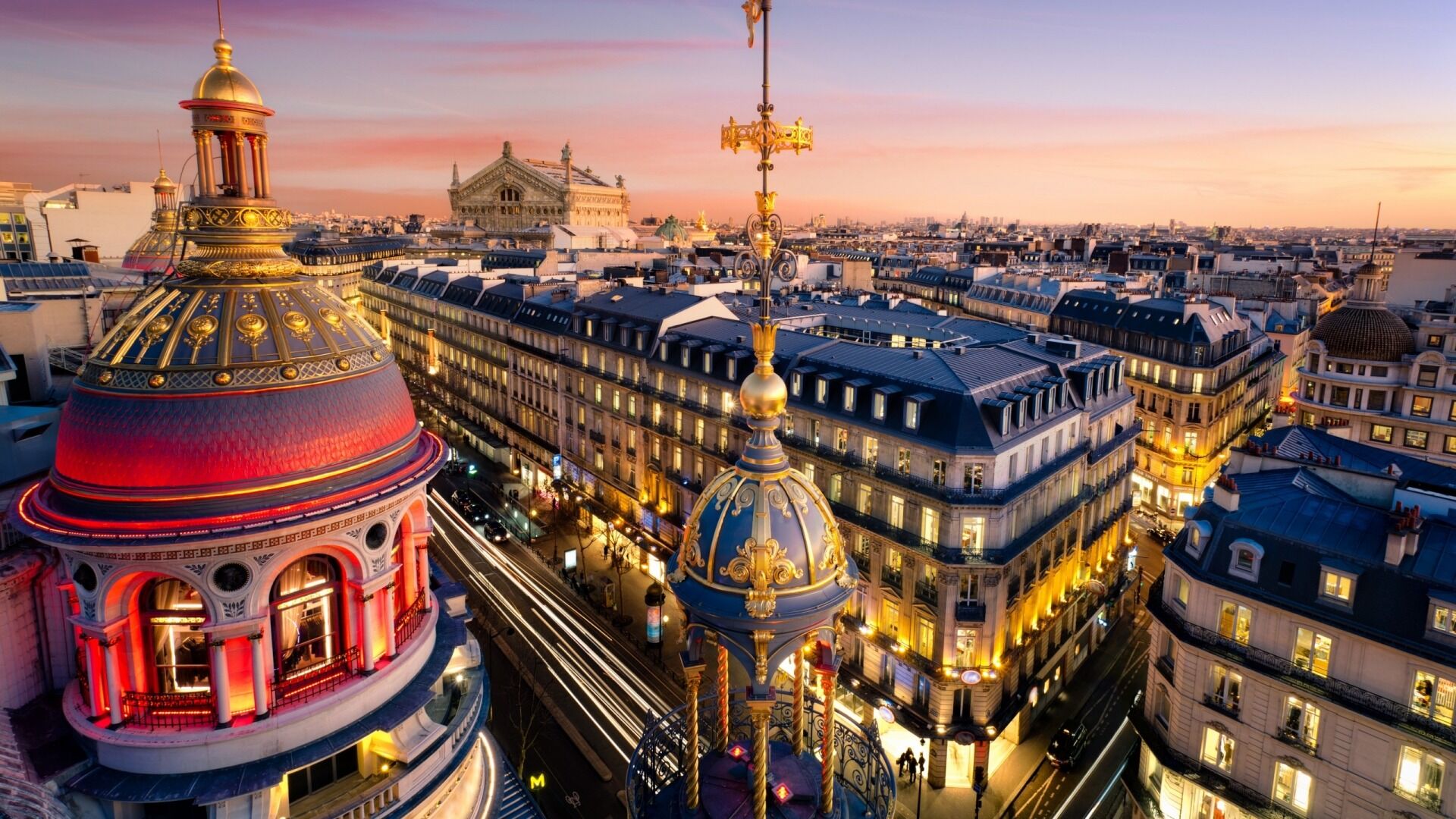
|  | [/samples.scaleflex.com/paris-salon2.jpg?**h=430**](https://doc.cloudimg.io/https://samples.scaleflex.com/paris-salon2.jpg?h=430) |
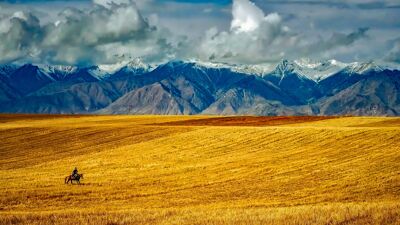
| | [**/samples.scaleflex.com/mountains.jpg?****h=400\&w=350**](https://doc.cloudimg.io/https://samples.scaleflex.com/mountains.jpg?h=400\&w=350) |
| | [**/samples.scaleflex.com/tesla.jpg?****height=350**](https://doc.cloudimg.io/https://samples.scaleflex.com/tesla.jpg?height=350) |
# Prevent enlargement
Do not upscale an image if target size is larger than the origin image
Disallows image upscaling when resizing with the width or height operations. When resizing, the image can be either scaled down or up depending on the original and target dimensions. If you want to ensure that the image is never upscaled - so the output will not be larger than the original, you can use the **org\_if\_sml** parameter.
**org\_if\_sml=1**
## Examples
| Preview | Syntax |
| -------------------------------- | --------------------------------------------------------------------------------------------------------------------------------------------------------------------------------------------------------------------------------------------------------------------------------------------------- |
|  |
|
# Crop
Resize and crop to achieve the desired width and height
Resizes and crops the image to specified dimensions (**width** and **height**) while keeping proportions. The resulting image is then compressed and delivered via CDN.
**func=crop**
{% hint style="info" %}
This is the default resizing mode when both **width** and **height** operations are used. You do not need to specify **func=crop** explicitly.
{% endhint %}
## Examples
| Preview | Syntax |
| -------------------------------- | ---------------------------------------------------------------------------------------------------------------------------------------------------------------------------------------------------------------------------------------------------------------------- |
|  | [/samples.scaleflex.com/birds.jpg?**func=crop**&**w=600**&**h=310**](https://doc.cloudimg.io/https://samples.scaleflex.com/birds.jpg?func=crop\&w=600\&h=310) |
|  | [/samples.scaleflex.com/birds.jpg?**w=600**&**h=410**](https://doc.cloudimg.io/https://samples.scaleflex.com/birds.jpg?w=600\&h=410) |
## Gravity
Specifies which part of the image you wish to keep while cropping. If you omit the gravity option, central cropping is performed.
**gravity=X**
### Available gravity values
| **northwest** | **north** | **northeast** |
| ------------------------------------------------------------------------------------------------------------------------------------------------- | ------------------------------------------------------------------------------------------------------------------------------------- | --------------------------------------------------------------------------------------------------------------------------------------- |
| **west** | **center** \| **centre** (default) | **east** |
| **southwest** | **south** | **southeast** |
| **auto** - [more info](/transformations/image-operations/crop/automatic-gravity-crop#automatic-gravity-legacy) | **face** - [more info](/transformations/image-operations/crop/automatic-gravity-crop#face-gravity) | **smart** - [more info](/transformations/image-operations/crop/automatic-gravity-crop#smart-gravity) |
| **X,Y** - [more info](/transformations/image-operations/crop/focal-point-crop) | **trim** - [more info](/transformations/image-operations/trim#trim-gravity) | |
### Examples
| Preview | Syntax |
| -------------------------------- | ------------------------------------------------------------------------------------------------------------------------------------------------------------------------------------------------------------------------------------------------------------------------------------------ |
|  | [/samples.scaleflex.com/paris-salon2.jpg?**w=500**&**h=430**&**gravity=west**](https://doc.cloudimg.io/https://samples.scaleflex.com/paris-salon2.jpg?w=500\&h=430\&gravity=west) |
|  | [/samples.scaleflex.com/paris-salon2.jpg?**w=500**&**h=430**&**gravity=east**](https://doc.cloudimg.io/https://samples.scaleflex.com/paris-salon2.jpg?w=500\&h=430\&gravity=east) |
# Automatic gravity crop
Automatically detects the focal point
Chooses the most important image features and objects and sets the focal point on them when cropping.
**gravity=smart**
**gravity=auto**
**gravity=face**
**gravity=meta**
## Smart gravity
Sets the crop focal point on the people in the image or on the most prominent features if no faces are detected. Useful for creating thumbnails from images with different aspect ratios.
### Examples
| Preview | Syntax |
| -------------------------------- | -------------------------------------------------------------------------------------------------------------------------------------------------------------------------------------------------------------------------------------------------------------------------------------- |
|  | [/samples.scaleflex.com/mountains.jpg?**w=300**](https://doc.cloudimg.io/https://samples.scaleflex.com/mountains.jpg?w=300) |
|  | [/samples.scaleflex.com/mountains.jpg?**h=300**&**w=300**&**gravity=smart**](https://doc.cloudimg.io/https://samples.scaleflex.com/mountains.jpg?h=300\&w=300\&gravity=smart) |
|  | [/samples.scaleflex.com/hotel.jpg?**h=300**](https://doc.cloudimg.io/https://samples.scaleflex.com/hotel.jpg?h=300) |
|  | [/samples.scaleflex.com/hotel.jpg?**h=300**&**w=300**&**gravity=smart**](https://doc.cloudimg.io/https://samples.scaleflex.com/hotel.jpg?h=300\&w=300\&gravity=smart) |
## Automatic gravity
Setting the **gravity** parameter to **auto** finds the focal point of the image based on entropy.
### Examples
| Preview | Syntax |
| -------------------------------- | -------------------------------------------------------------------------------------------------------------------------------------------------------------------------------------------------------------------------------------------------------------------------- |
|  | [/samples.scaleflex.com/boat.jpg?**h=300**](https://doc.cloudimg.io/https://samples.scaleflex.com/boat.jpg?h=300) |
|  | [/samples.scaleflex.com/boat.jpg?**h=300**&**w=300**&**gravity=auto**](https://doc.cloudimg.io/https://samples.scaleflex.com/boat.jpg?h=300\&w=300\&gravity=auto) |
## Face gravity
When using **gravity=face**, all images with one dominant face are focused on this face upon cropping. If there are many or no faces in the image, **gravity** falls back to **auto**.
{% hint style="info" %}
If you would like to try and include multiple faces in the image, you can use **gravity=smart**
{% endhint %}
### Examples
| Preview | Syntax |
| -------------------------------- | ------------------------------------------------------------------------------------------------------------------------------------------------------------------------------------------------------------------------------------------------------------------------------------ |
|  | [/samples.scaleflex.com/classroom.jpg?**h=300**&**w=300**&**gravity=face**](https://doc.cloudimg.io/https://samples.scaleflex.com/classroom.jpg?h=300\&w=300\&gravity=face) |
## Metadata gravity
When using **gravity=meta**, all images having a custom focus point defined in the library will use this as if using the `focal point crop`. If there is no `focus point` defined in the image metadata, **gravity** falls back to **auto**.
{% hint style="info" %}
You can override the fallback by chaining the methods, so that in case there is no `focus point` defined in the library's image metadata, it would proceed using another method like face, trim, or other.
eg. of use: **gravity=meta,face**
{% endhint %}
# Positionable crop
Crops by boundary coordinates
Allows to crop an image by providing the exact cropping area. It is useful when you want to crop a specific part of the image. To set the coordinates of the crop rectangle, use the **tl\_px** and **br\_px** operations or the `X` and `Y` Parameters are an alternative way to set the coordinates.
**tl\_px=X1,Y1**
**br\_px=X2,Y2**\
\ **X=X1**\ **Y=Y1**
## Examples
Origin image: [/docs/kids.jpg](https://doc.cloudimg.io/https://samples.scaleflex.com/kids.jpg)
| Preview | Syntax |
| ------------------------------------------------------------------- | -------------------------------------------------------------------------------------------------------------------------------------------------------------------------------------------------------------------------------------------- |
|  | [/samples.scaleflex.com/kids.jpg?**tl\_px=900,100**&**br\_px=1300,550**](https://doc.cloudimg.io/https://samples.scaleflex.com/kids.jpg?tl_px=900,100\&br_px=1300,550) |
|  | [/samples.scaleflex.com/kids.jpg?**br\_px=890,560**](https://doc.cloudimg.io/https://samples.scaleflex.com/kids.jpg?br_px=890,560) |
| | [**/samples.scaleflex.com/kids.jpg?****x=650\&y=100**](https://doc.cloudimg.io/https://samples.scaleflex.com/kids.jpg?x=650\&y=100) |
## Combining positionable crop with resize modes
Positionable crop is a separate operation can be combined with all available resize functions - [Width and height](/transformations/image-operations/width-and-height), [Crop](/transformations/image-operations/crop), [Fit](/transformations/image-operations/fit), [Bound](/transformations/image-operations/bound) and [Cover](/transformations/image-operations/cover). This resize is always performed after the positionable crop.
### Examples
| Preview | Syntax |
| -------------------------------- | ------------------------------------------------------------------------------------------------------------------------------------------------------------------------------------------------------------------------------------------------------------------------------------------------------------------------------------------------------------------------------------------------------------------------------------------------------------------------------------- |
|  | [/samples.scaleflex.com/kids.jpg?**w=200**&**tl\_px=900,0**&**br\_px=1300,600**](https://doc.cloudimg.io/https://samples.scaleflex.com/kids.jpg?w=200\&tl_px=900,0\&br_px=1300,600) |
|  | [/samples.scaleflex.com/kids.jpg?**w=800**&**h=270**&**tl\_px=310,70**&**br\_px=1550,580**&**func=fit**&**bg\_color=3498db**](https://doc.cloudimg.io/https://samples.scaleflex.com/kids.jpg?w=800\&h=270\&tl_px=310,70\&br_px=1550,580\&func=fit\&bg_color=3498db) |
# Focal point crop
Sets the crop focal point coordinates
Allows to crop an image by defining the coordinates of the crop focal point. It is useful when you want to crop images where the coordinates of the point of interest are already known or set.
To set the coordinates of the focal point, use the **gravity=X,Y** operation where **X** and **Y** are the coordinates of the focal point (in pixels). Alternatively, you can set the coordinates as a percentage of the original image - **gravity=Xp,Yp** or **gravity=xc,yc**, where X,Y=0..100 and x,y=0..1.
**gravity=X,Y**
**gravity=Xp,Yp|xc,yc**
Another way to set the coordinates is to save them as part of the `file info` metadata in the integrated Cloudimage library and use the **gravity=meta** operation (the file needs to be stored in the Cloudimage library so that the transformation engine can query and use the custom point).
**gravity=meta**
{% hint style="info" %}
**gravity=meta** will use the coordinates if present, and fall-back to **auto** if not.
{% endhint %}
## Examples
Original image: [/docs/castle.jpg?**w=1000**](https://doc.cloudimg.io/https://samples.scaleflex.com/castle.jpg?w=1000)
| Preview | Syntax |
| -------------------------------- | ---------------------------------------------------------------------------------------------------------------------------------------------------------------------------------------------------------------------------------------------------------------------------------------- |
|  | [/samples.scaleflex.com/castle.jpg?**w=450**&**h=300**&**gravity=1750,1000**](https://doc.cloudimg.io/https://samples.scaleflex.com/castle.jpg?w=450\&h=300\&gravity=1750,1000) |
|  | [/samples.scaleflex.com/castle.jpg?**w=450**&**h=300**&**gravity=80p,50p**](https://doc.cloudimg.io/https://samples.scaleflex.com/castle.jpg?w=450\&h=300\&gravity=80p,50p) |
{% hint style="info" %}
Please note that the focal point in **gravity=X,Y** has to be defined as coordinates **X** and **Y** of the full-sized origin image and not the scaled-down version.
{% endhint %}
# Face crop
Crop operation focusing only on one face
Finds the most prominent face in the image and crops it to the specified with the **width** and **height** parameters dimensions. If you however provide only one dimension, the other dimension will be chosen automatically to keep the aspect ratio of the face.
**func=face**
{% hint style="info" %}
If there is no face in the image or many faces are found, the operation defaults to a standard crop.
{% endhint %}
## Examples
| Preview | Syntax |
| -------------------------------- | ------------------------------------------------------------------------------------------------------------------------------------------------------------------------------------------------------------------------------------------------------------------------------------------------------------------------------------------------------------------------------- |
|  |
|
## Face margin
Sets margins around the face. You can set equal margins with **face\_margin=X** or separate horizontal and vertical margins (**face\_margin=W,H**).
**face\_margin=X|W,H**
### Examples
| Preview | Syntax |
| -------------------------------- | ----------------------------------------------------------------------------------------------------------------------------------------------------------------------------------------------------------------------------------------------------------------------------------------------------------------------------------------------------------------------- |
|  | [/samples.scaleflex.com/business-portfolio.jpg?**w=400**&**h=300**&**func=face**&**face\_margin=60**](https://doc.cloudimg.io/https://samples.scaleflex.com/business-portfolio.jpg?w=400\&h=300\&func=face\&face_margin=60) |
|  | [/samples.scaleflex.com/classroom.jpg?**h=240**&**func=face**&**face\_margin=80,30**](https://doc.cloudimg.io/https://samples.scaleflex.com/classroom.jpg?h=240\&func=face\&face_margin=80,30) |
# Face hide
Crop operation which removes faces from the top of the image
Crops out the topmost part of an image if it contains a face.
To control the margin when cropping the face out, you can use the **face\_margin=Y** operation where **Y** is a percentage of the face height. Its default value is 20. You can also use negative numbers if you would like to keep part of the face.
**func=facehide**
## Examples
| Preview | Syntax |
| -------------------------------- | ------------------------------------------------------------------------------------------------------------------------------------------------------------------------------------------------------------------------------------------------------------------------------------------------------------------------------------------------------------------ |
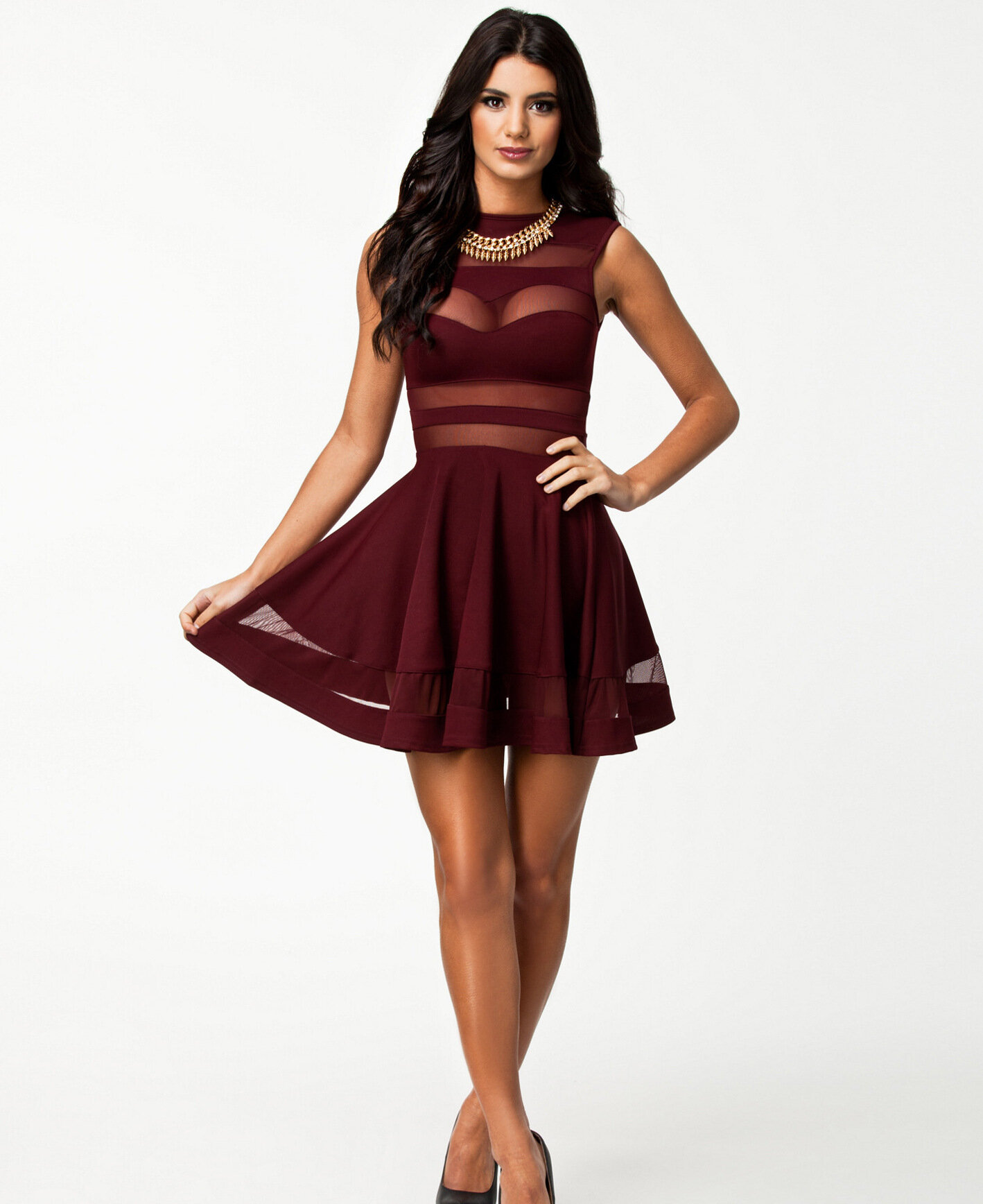
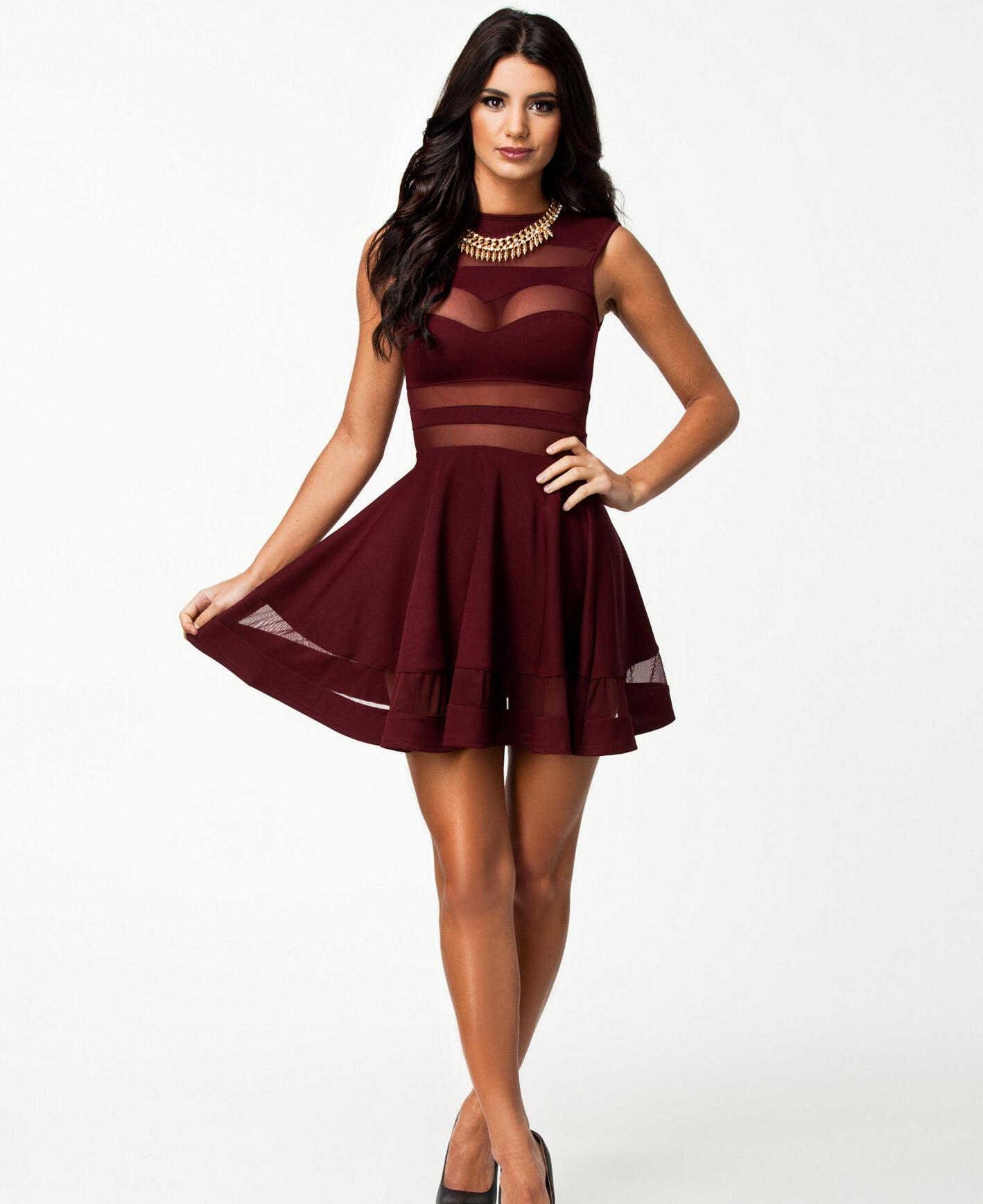
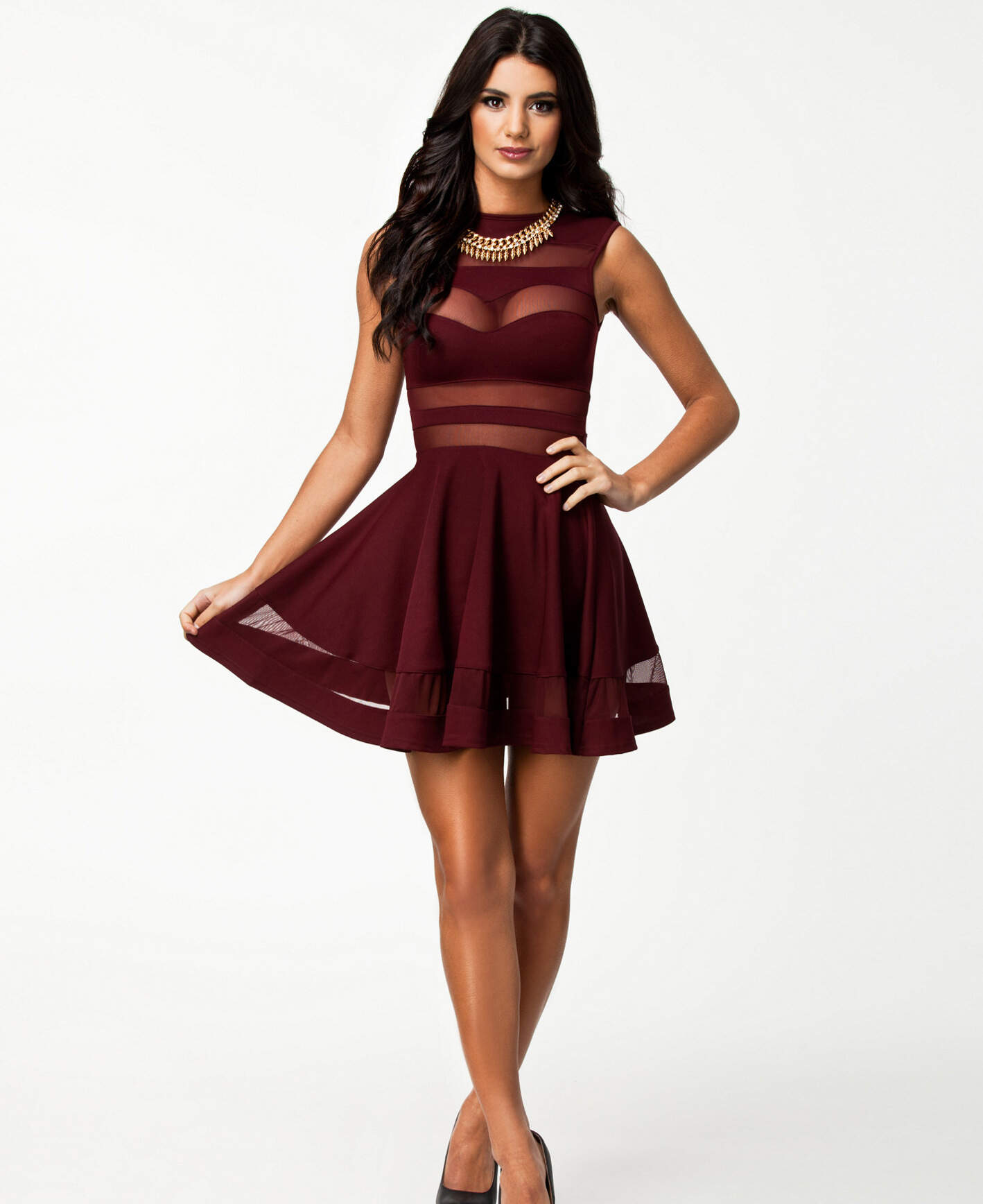
|  | [/samples.scaleflex.com/woman\_dress.jpg?**w=450**&**h=600**&**gravity=auto**](https://doc.cloudimg.io/https://samples.scaleflex.com/woman_dress.jpg?w=450\&h=600\&gravity=auto) |
|  | [/samples.scaleflex.com/woman\_dress.jpg?**func=facehide**&**w=450**&**h=600**&**face\_margin=10**](https://doc.cloudimg.io/https://samples.scaleflex.com/woman_dress.jpg?func=facehide\&w=450\&h=600\&face_margin=10) |
# Aspect ratio crop
Crop by aspect ratio or aspect ratio range
Sets target aspect ratio or aspect ratio range when cropping. Aspect ratios can be set as decimal values (1.778) or ratios (16:9).
**aspect\_ratio=AR** | **ar=AR**
**aspect\_ratio=AR1,AR2** | **ar=AR1,AR2**
## **Crop and resize**
If you provide only one dimension parameter (**width** or **height**) and **aspect\_ratio**, the other dimension will be calculated. If you include both **width** and **height** in the URL, **aspect\_ratio** is ignored.
### Examples
| | |
| -------------------------------- | -------------------------------------------------------------------------------------------------------------------------------------------------------------------------------------------------------------------------------------------------------------------------------------------------- |
|  |
|
## Crop without resize
If you provide only **aspect\_ratio** and no dimensions (**width** or **height**), the image will be cropped without resizing.
### Examples
| Preview | Syntax |
| -------------------------------- | ----------------------------------------------------------------------------------------------------------------------------------------------------------------------------------------------------------------------------------- |
|  |
|
## Aspect ratio range
You can specify a range of aspect ratio values, for example, **aspect\_ratio=4:3,16:9**. Images that fall within this range, will not be cropped. Useful to avoid very wide or very tall images by cropping them to the closest aspect ratio.
### Examples
| | |
| -------------------------------- | -------------------------------------------------------------------------------------------------------------------------------------------------------------------------------------------------------------------------------------------------------------------------------------------------------------------------------------- |
|  |
|
# Fit
Fits the image in a box with padding when needed
Resizes the image to fit into a specified **width** and **height** box, adds padding (image or solid color) to keep proportions, and delivers the resulting image via CDN.
**func=fit**
{% hint style="info" %}
Please note that by default, smaller images will not be upscaled to fit the box. If you want to enable this behavior, you need to use **fit\_enlarge=1**. along with **func=fit**.
{% endhint %}
The padding can be customized using the following additional operations:
Operation
Syntax
Description
gravity
gravity=X X=[north|south][east|west]
sets the position of the image in the fit box
margin
margin=X
defines a minimum margin when fitting the image in the new canvas
solid background
bg_color=X | bg_colour=X X={hex color}|auto
defines a background color with a hex code, color name or automatically, based on the image palette
blurred background
bg_img_fit=1
sets blurred image background
bg_blur=X
applies Gaussian blur to the background image
bg_opacity=X X=0..1
specifies background image opacity
bg_colorize=X | bg_colourise=X
defines a color to tint the background image
bg_gravity=X X=[north|south][east|west]
defines the positioning of the background image within its container
image upscaling
fit_enlarge=1
allows upscaling smaller images to the desired dimensions (will result in inferior image resolution)
## Gravity
| **northwest** | **north** | **northeast** |
| ---------------------------------------------------------------------------------------------------------------- | -------------------------------------------------------------------------------------------------------- | ------------------------------------------------ |
| **west** | **center** \| **centre** (default) | **east** |
| **southwest** | **south** | **southeast** |
| **trim** - [more info](/transformations/image-operations/trim#trim-gravity) | | |
When using **`func=fit`** along with (**`trim=X)`**, you can set **`gravity=trim`**. This way, upon a successful trim, the gravity will be resolved to a compass position so that the canvas will not be extended on the non-trimmed edges.
## Margin
**margin=X**
If only one value is provided (**`margin=X`**), this sets the same minimum margin for all four edges. When two values are provided (**`margin=V,H`**), this sets the vertical (top and bottom) and horizontal (left and right) margins. If four values are listed (**`margin=N,E,S,W`**), they refer to the four image edges - north (top), east (right), south (bottom) and west (left).
By default, the margin is defined in pixels and applied before resizing. Alternatively, you can also use percentages (eg. **`margin=5p`**) of the destination size or absolute values in pixels (**`margin=100a`**) to define the margins.
{% hint style="info" %}
When using a margin alongside **`trim=X`** and **`gravity=trim`**, if a successful trim is performed, the margins on the non-trimmed side is removed. For more details, see the [Trim](/transformations/image-operations/trim) operation.
{% endhint %}
## Examples
| Preview | Syntax |
| ------------------------------------------------------------------- | ------------------------------------------------------------------------------------------------------------------------------------------------------------------------------------------------------------------------------------------------------------------------------------------------------------------------------------------------------------------------------------------------------------------------------------------------------------------------------------------------------------------------------------------------------------------------------------------------------------------------------------------------------------------------------------------------------------------------------------------------------------------------------------------------------------------------------------------------------------------------------------------------------------------------------------------------ |
|  |
|
# Cropfit
Automatic crop or fit based on origin dimensions
Performs either [Crop](/transformations/image-operations/crop) or [Fit](/transformations/image-operations/fit) depending on the origin image and the desired transformation dimensions.
If the desired image is smaller than the original, the result is cropped to achieve the desired dimensions.
**func=cropfit**
## Examples
| Preview | Syntax |
| -------------------------------- | ------------------------------------------------------------------------------------------------------------------------------------------------------------------------------------------------------------------------------------------------------------------------------------------------------------------------------------------------------------------------------------------------------------------------------------------------------------------ |
|  |
|
## Using cropfit with trim
If you include the [Trim](/transformations/image-operations/trim) operation in the URL, the image will be trimmed first (if possible) and then either cropped or fitted to the desired size.
### Examples
| Preview | Syntax |
| -------------------------------- | ----------------------------------------------------------------------------------------------------------------------------------------------------------------------------------------------------------------------------------------------------------------------------------------------------------------------------------------------------------------------------------------------------------------------------------------------------------------------------------------------------------------------------- |
|  |
|
# Bound
Resize with maximum size constraints (fit in a box)
Resizes to a given **width** and **height** box and keeps proportions. Similar to [Fit](/transformations/image-operations/fit) but without adding padding. Delivers the resulting image via CDN.
**func=bound**
## Examples
| Preview | Syntax |
| -------------------------------- | ----------------------------------------------------------------------------------------------------------------------------------------------------------------------------------------------------------------------------------------------------------------------------------------------------- |
|  | [/samples.scaleflex.com/eiffel\_doc.jpg?**width=600**&**height=600**&**func=bound**](https://doc.cloudimg.io/https://samples.scaleflex.com/eiffel_doc.jpg?width=600\&height=600\&func=bound) |
# Boundmin
Resize with minimum size constraints (to fill a box)
Resizes an image while bounding the *smaller* dimension to the desired **width** or **height** while keeping proportions. Delivers the resulting image via CDN.
**func=boundmin**
{% hint style="info" %}
Please note that the larger dimension of the resized image will be equal to or greater than the dimensions set in the URL. If you would like to fit the image to set **width** and **height**, you should use either [Fit](/transformations/image-operations/fit) or [Bound](/transformations/image-operations/bound).
{% endhint %}
## Examples
| Preview | Syntax |
| -------------------------------- | ----------------------------------------------------------------------------------------------------------------------------------------------------------------------------------------------------------------------------------------------------------------------------------------------------------- |
|  | [/samples.scaleflex.com/eiffel\_doc.jpg?**width=600**&**height=600**&**func=boundmin**](https://doc.cloudimg.io/https://samples.scaleflex.com/eiffel_doc.jpg?width=600\&height=600\&func=boundmin) |
# Cover
Resize ignoring proportions
Resizes the image to a specified **width** and **height** without keeping the original proportions and delivers the resulting image via CDN.
**func=cover**
{% hint style="info" %}
The **cover** resize function does not keep proportions and might distort your original image. This mode should be used carefully.
{% endhint %}
## Examples
| Preview | Syntax |
| -------------------------------- | ------------------------------------------------------------------------------------------------------------------------------------------------------------------------------------------------------------------------------------------------------------------------------------------ |
|  | [/samples.scaleflex.com/tesla.jpg?**width=400**](https://doc.cloudimg.io/https://samples.scaleflex.com/tesla.jpg?width=400) |
|  | [/samples.scaleflex.com/tesla.jpg?**width=400**&**height=400**&**func=cover**](https://doc.cloudimg.io/https://samples.scaleflex.com/tesla.jpg?width=400\&height=400\&func=cover) |
# Device pixel ratio
Delivers the optimal size based on device pixel-ratio
Allows you to deliver the proper image dimensions according to a defined device pixel ratio. This operation can help with conversion between device-independent pixels and CSS (reference) pixels. Useful in responsive image solutions using the `srcset` HTML attribute. Allows positive values limited to 5.
**dpr=X**
## Examples
| Preview | Syntax |
| -------------------------------- | -------------------------------------------------------------------------------------------------------------------------------------------------------------------------------------------------------------------------------------------------------------------------------------------- |
|  |
|
{% hint style="info" %}
If the image is also rotated, rotation is performed *after* the image has been flipped.
{% endhint %}
# Rotate
Arbitrary angle rotation
Rotates the image by a specified angle, counterclockwise. You can use **bg\_color=X** to set the background fill color if the rotation angle is not divisible by 90.
**r=X**
## Examples
| Preview | Syntax |
| -------------------------------- | --------------------------------------------------------------------------------------------------------------------------------------------------------------------------------------------------------------------------------------------------------------------------------- |
|  | [/samples.scaleflex.com/earth.jpg?**w=400**&**r=90**](https://doc.cloudimg.io/https://samples.scaleflex.com/earth.jpg?w=400\&r=90) |
|  | [/samples.scaleflex.com/earth.jpg?**w=400**&**r=15**&**bg\_color=10100E**](https://doc.cloudimg.io/https://samples.scaleflex.com/earth.jpg?w=400\&r=15\&bg_color=10100E) |
{% hint style="info" %}
Please note that image rotation is performed *before* resizing operations.
{% endhint %}
# Trim
Image trimming
Removes any single-color padding around the image if present.
The parameter does not specify the amount of border or frame to trim but rather how aggressive the trim algorithm should be. A bigger value of the parameter (e.g. 25) might trim part of the image. Typical values are between 0 and 10.
This allows you to use the same parameter values for all your images.
**trim=X**
{% hint style="info" %}
If the image is resized with the **width** and/or **height** commands, the resizing is performed *after* the border (if present) is trimmed.
{% endhint %}
## Trim gravity
When **`gravity=trim`** is set alongside trim=X (for the [Crop](/transformations/image-operations/crop), [Fit](/transformations/image-operations/fit) or [Cropfit](/transformations/image-operations/cropfit) operations), the focal point is defined depending on the trim result:
* When the image is trimmed on all sides, gravity is set to **center**;
* When no trim has been performed, gravity is set to **smart**;
* If the image has been trimmed on some edges only, the gravity is set to:
* **fit** operation - gravity is set to the edges opposite of the trimmed ones so that the canvas is extended only on the trimmed sides;
* **crop** operation - gravity is set to the trimmed edges so that the image is not cropped anymore on the trimmed edges.
## Whitespace trim
By default, the trim operation removes any solid color regions at the edges. If you prefer to only trim out white (and near-white) and transparent regions while preserving other solid colors, you can add the `whites` instruction to the trim. The intensity parameter remains the same.
**trim=whites,X**
## Examples
| Preview | Syntax |
| ------------------------------------------------------------------------------------- | ----------------------------------------------------------------------------------------------------------------------------------------------------------------------------------------------------------------------------------------------------------------------------------------------- |
|  |
|
# Rounded corners
Apply rounded corners with specified radius
Rounds the corners of images with a radius of X pixels. If you wish to fill the cut corner(s) with a specific color, you can use the **bg\_color** parameter.
**radius=X** (all corners are rounded with radius X pixels)
**radius=R1,R2,R3,R4** (values for each corner, with max being the min px of the 2 sides around corner)
If four values are provided, these values correspond to the four corners: R1 = top-left corner, R2 = bottom-left corner, R3 = bottom-right corner, R4 =top-right corner. For example, to round only one of the corners with the maximum possible radius, you need to use **radius=max,0,0,0**.
## Examples
# Background removal
Isolate the main object in the image and remove the background
{% hint style="info" %}
Background removal is powered by Visual Operations Credits; full details on consumption rates can be found here: [Visual Operation Credits table](https://docs.cloudimage.io/account-management/usage#visual-operation-credits-table)
{% endhint %}
**bg\_remove=1**
Background removal automatically detects the foreground object and isolates it by removing the background of an image using advanced AI technology. It can help you create a solid or transparent background for your pictures. This can give your application or website an overall polished look. Moreover, product images with a clear-defined foreground can be indexed better in search engines which rely on AI classification.
{% hint style="info" %}
Please keep in mind that the background removal operation is asynchronous which means that the first request will return the original image (with short cache value) while the image is being processed in the background. The status is checked on each consecutive request and after the operation is complete, the origin image is replaced and the standard caching settings are set.
{% endhint %}
## Examples
| Preview | Syntax |
| ------------------------------------------------------------------- | ------------------------------------------------------------------------------------------------------------------------------------------------------------------------------------------------------------------------------------------------------------------------------------------ |
| | [/samples.scaleflex.com/face.png?**w=400**](https://doc.cloudimg.io/https://samples.scaleflex.com/face.png?w=400) |
| | [/samples.scaleflex.com/face.png?**w=400**&**bg\_remove=1**](https://doc.cloudimg.io/https://samples.scaleflex.com/face.png?w=400\&bg_remove=1) |
| | [/samples.scaleflex.com/purse.jpg?**w=400**](https://doc.cloudimg.io/https://samples.scaleflex.com/purse.jpg?w=400) |
| | [/samples.scaleflex.com/purse.jpg?**w=400**&**bg\_remove=1**&**bg\_color=456**](https://doc.cloudimg.io/https://samples.scaleflex.com/purse.jpg?w=400\&bg_remove=1\&bg_color=456) |
Feel free to try the background removal algorithm with your own images on our [AI demo page](https://ai.scaleflex.com/demo/#/).
# Image filters
Apply image effects and adjustments
Filters allow you to modify images on the fly by applying different effects.
Most of the on-the-fly image transformations can be configured using the [Asset Variation Builder](/transformations/asset-variation-builder), an in-line URL builder to preview each image transformation instantly.
## Available filters
| Filter | Syntax | Description | | | |
| ---------------------------------------------------------------------- | ------------------------------------------------------------------------------------------------------ | --------------------------------------------------------------- | ------------------------------------------------------------------ | -------------------------------------------------------------------- | --------------------------------------------- |
| [Brightness](/transformations/image-filters/adjustment/brightness) | **bright=X** \| **f=bright:X** | adjusts the brightness of the image | | | |
| [Contrast](/transformations/image-filters/adjustment/contrast) | **contrast=X** \| **f=contrast:X** | adjusts the contrast of the image | | | |
| [Saturate](/transformations/image-filters/adjustment/saturate) | **saturate=X** \| **f=saturate:X** | adjusts the saturation of the image | | | |
| [Grayscale](/transformations/image-filters/colorize/grayscale) |
gray=1 | f=gray | grey=1 | f=grey
| converts the image to a black and white one |
| [Color overlay](/transformations/image-filters/colorize/color-overlay) | **colorize=X** \| **colourise=X** | applies a color overlay | | | |
| [Pixelate](/transformations/image-filters/pixelate) |
| pixelates the image into X-pixel-sized blocks |
| [Blur](/transformations/image-filters/blur) | **blur=X** \| **f=blur:X** | applies Gaussian blur | | | |
| [Sharpen](/transformations/image-filters/sharpen) | **sharp=X** \| **f=sharp:X** | applies unsharp mask to sharpen the image | | | |
| [Face blur](/transformations/image-filters/face-blur) | **blur\_faces=X** | detects all faces in the image and applies blur to conceal them | | | |
## Combining filters
To use more than one filter, you can either use separate parameters or concatenate them with commas into the **f** parameter:
| Preview | Syntax |
| -------------------------------- | ----------------------------------------------------------------------------------------------------------------------------------------------------------------------------------------------------------------------------------------------------------------------------------------------------------------------------------------------------------------------------- |
|  |
|
# Adjustment
Modify brightness, contrast and saturation
# Brightness
Brightness correction
To adjust the brightness, you can use the **bright** filter and set the desired adjustment value.
**bright=X**
## Examples
| Preview | Syntax |
| -------------------------------- | ------------------------------------------------------------------------------------------------------------------------------------------------------------------------------------------------------------------------------------------------------------------------------------------ |
|  |
|
# Contrast
Brightness correction
To adjust the contrast, you can use the **contrast** filter and set the desired adjustment value.
**contrast=X**
## Examples
| Preview | Syntax |
| -------------------------------- | -------------------------------------------------------------------------------------------------------------------------------------------------------------------------------------------------------------------------------------------------------------------------------------------- |
|  |
|
# Saturate
Color saturation correction
To adjust the color saturation, you can use the **saturate=X** filter and set the desired adjustment value (`X= -100..100`). Negative values will decrease color saturation while positive ones will increase it.
**saturate=X**
## Examples
| Preview | Syntax |
| -------------------------------- | -------------------------------------------------------------------------------------------------------------------------------------------------------------------------------------------------------------------------------------------------------------------------------------------- |
|  |
|
## Desaturate
Using **saturate=-100** will remove all color information and convert the image to grayscale.
{% hint style="info" %}
Please keep in mind that desaturating an image just discards all color information. If you prefer to create a grayscale image while taking into account the human visual system's color perception, you should use the **gray** parameter instead.
{% endhint %}
### Examples
| Preview | Syntax |
| -------------------------------- | ---------------------------------------------------------------------------------------------------------------------------------------------------------------------------------------------------------------------------------------------------------------------------------------- |
|  |
|
# Color manipulation
Color effects and filters
# Color overlay
Colorize the image with an overlay
To create a color overlay by using **colorize=X\[,Y]**, where **X** is the color of the overlay (hex value or color name) and **Y** is the opacity (`Y=0..1`, default `0.5`).
**colorize=X\[,Y]** | **colourise=X\[,Y]**
| Preview | Syntax |
| -------------------------------- | -------------------------------------------------------------------------------------------------------------------------------------------------------------------------------------------------------------------------------------------------------------------------------------------------------------------------------------------------------------------------------------------------- |
|  |
|
# Duotone
Duotone transform
Create a duotone effect by using **duotone=C1,C2\[,Y]**, where **C1** and **C2** are the colors for the duotone (hex value or color name) and **Y** is the opacity (`Y=0..1`, default`1`).
**duotone=C1,C2\[,Y]**
| Preview | Syntax |
| ------------------------------------------------------------------- | ---------------------------------------------------------------------------------------------------------------------------------------------------------------------------------------------------------------------------------------------------------------------------------------------------------------------------------------------------------------------------------------------------------------------------------- |
| |
|
# Sepia
Sepia tone
To apply a sepia effect to your images, you can use the `sepia=1` parameter.
**sepia=1**
| Preview | Syntax |
| ------------------------------------------------------------------- | ------------------------------------------------------------------------------------------------------------------------------------------------------------------------------------------------------------------------------------------------------------------------------------------------------------------------------------------------------------------------------------------------------------------------------------------------------------------------------------------------------------------------------------------------------------------------------------------------ |
| |
|
# Invert
Color inversion
To invert the colors of an image, use the invert=1 parameter.
**invert=1**
| Preview | Syntax |
| ------------------------------------------------------------------- | ----------------------------------------------------------------------------------------------------------------------------------------------------------------------------------------------------------------- |
| |
|
| | [/samples.scaleflex.com/fields.jpg?**w=400**&**invert=1**](https://doc.cloudimg.io/https://samples.scaleflex.com/fields.jpg?w=400\&invert=1) |
# Blur
Gaussian blur
Applies Gaussian blur to the image. The parameter value (X) is the kernel size of the filter in pixels.
**blur=X**
## Examples
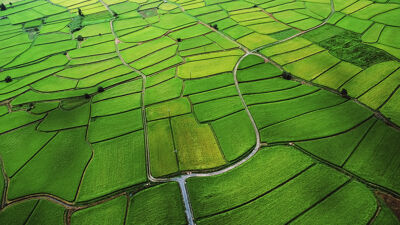
| Preview | Syntax |
| -------------------------------- | ---------------------------------------------------------------------------------------------------------------------------------------------------------------------------------------------------------- |
|  |
|
# Pixelate
Mosaic filter
Applies a pixelation effect to an image. You can set the desired block size in pixels. If the image is resized the filter is applied after resizing.
**pixelate=X** | **pixellate=X**
## Examples
| Preview | Syntax |
| -------------------------------- | --------------------------------------------------------------------------------------------------------------------------------------------------------------------------------------------------------------------------------------------------------------------------------------- |
|  |
|
# Sharpen
Unsharp mask
Sharpening is a powerful tool to emphasize texture and details, especially on smaller images, e.g. thumbnails. Cloudimage can apply an **unsharp mask** filter which will make your image look sharper. You can specify the filter radius (X) in pixels.
**sharp=X**
## Examples
| Preview | Syntax |
| -------------------------------- | ------------------------------------------------------------------------------------------------------------------------------------------------------------------------------------------------------------------------------------------------------------------------------------------ |
|  |
|
# Face blur
{% hint style="info" %}
Face blur is powered by Visual Operations Credits; full details on consumption rates can be found here: [Visual Operation Credits table](https://docs.cloudimage.io/account-management/usage#visual-operation-credits-table)
{% endhint %}
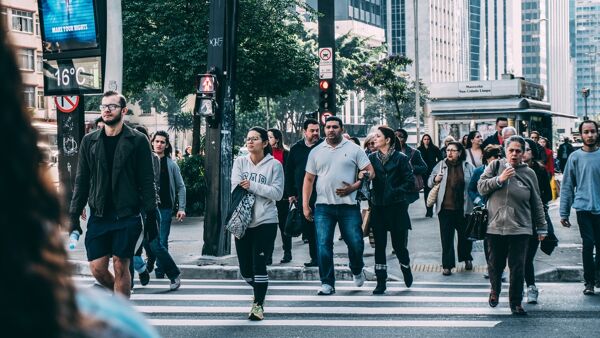
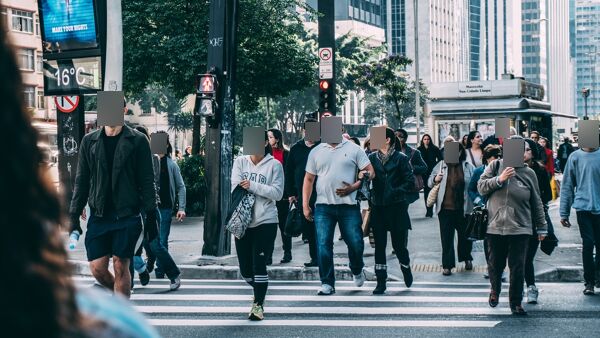
Detects all faces in the image and applies blur to conceal them. To activate the filter, set X to 1 (`blur_faces=1`). You can control the blur radius (default: `R=30`) and sigma (default: `S=1000`).
**blur\_faces=1\[,R\[,S]]**
## Examples
| Preview | Syntax |
| ------------------------------------------------------------------- | ------------------------------------------------------------------------------------------------------------------------------------------------------------------------------------------------------------------------------------------------------------------------------------------------------- |
| |
|
# Image watermarking
Compose image or text layers over the main image
Cloudimage can place a watermark on top of your images if you want to protect them from copying or tag them with a serial number or custom text. There are three types of watermarks - click on each one for more details.
Most of the on-the-fly image transformations can be configured using the [Asset Variation Builder](/transformations/asset-variation-builder), an in-line URL builder to preview each image transformation instantly.
|
If you need to tag images, use the text watermark to dynamically embed text to the images you need tagged.
|  |
## Multiple watermarks
### Basic syntax
You can overlay multiple watermarks by indexing the parameters in the URL **wat\[1]=1**&**wat\[2]=1**. The **wat=1** parameter must be indexed and contain all watermarks to activate the feature.
All parameters without indices will be applied to all watermarks in the image.
?**wat\[1]=1**&**wat\[2]=1**&**wat\_scale\[1]=50**&**wat\_scale\[2]=10**&**wat\_opacity=0.5**
In the above fragment, **wat\_opacity=0.5** will be applied to both watermarks.
### Multiple watermark types
Combining multiple watermark types is also possible.
{% hint style="info" %}
Remember that the presence of the **wat\_url=X** parameter defines a dynamic watermark, **wat\_text=X** defines a text watermark and the absence of either defines a static watermark.
{% endhint %}
?**wat\[****1****]=1**&**wat\[****2****]=1**&**wat\[****3****]=1**&**wat\_url\[****2****]=sample.li/Angular.png**&**wat\_text\[****3****]=text**
In the above fragment, there are three watermarks. Watermark 2 is a dynamic watermark, watermark 3 is a text watermark, and watermark 1 is a static one.
### Example
| Preview | Syntax |
| -------------------------------- | ------------------------------------------------------------------------------------------------------------------------------------------------------------------------------------------------------------------------------------------------------------------------------------------------------------------------------------------------------------------------------------------------------------------------------------------------------------------------------------------------------------------------------------------------------------------------------------------------------------------------------------------------------------------------------------------------------------------------------------------------------------------------------------------------------------------------------------------------------------------------------------------------------------------------------------------------------------------------------------------------------------------------------------------------------------------------------------------------------------------------------------------------------------------------------------------------------------------------------------------------------------------------------------------------------------------------------------------------------------------------------------------------------------------------------------------------------------------------------------------------------------------------------------------------------------------------------------------------------------------------------------------------------------------------------------------------------------------------------------------------------------------------------------------------------------------------------------------------------------------------------------------------------------------------------------------------------------------------------------------------------------------------------------------------------------------------------------------------------------------------------------------------------------------ |
|  | [/samples.scaleflex.com/paris-salon2.jpg?**w=600**&**wat\[****1****\]=1**&**wat\[****2****\]=1**&**wat\[****3****\]=1**&**wat\_pad=6**&**wat\_url\[****1****\]=http://sample.li/Angular.png**&**wat\_url\[****2****\]=http://sample.li/React.png**&**wat\_gravity\[****1****\]=southeast**&**wat\_gravity\[****2****\]=southwest**&**wat\_scale=25**&**wat\_text\[****3****\]=TEXT%20WATERMARK**&**wat\_fontsize\[****3****\]=20**&**wat\_gravity\[****3****\]=north**&**wat\_color\[****3****\]=blue**](https://doc.cloudimg.io/https://samples.scaleflex.com/paris-salon2.jpg?w=600\&wat\[1]=1\&wat\[2]=1\&wat\[3]=1\&wat_pad=6\&wat_url\[1]=http://sample.li/Angular.png\&wat_url\[2]=http://sample.li/React.png\&wat_gravity\[1]=southeast\&wat_gravity\[2]=southwest\&wat_scale=25\&wat_text\[3]=TEXT%20WATERMARK\&wat_fontsize\[3]=20\&wat_gravity\[3]=north\&wat_color\[3]=blue) |
# Static watermark
Statically defined image overlay
This function will watermark selected images with the same watermark - an image set in the Cloudimage admin console. This is useful for placing your company logo, name, or other copyright information. If you would like to watermark different images with different watermarks, please refer to the [Dynamic watermark](/transformations/image-watermarking/dynamic-watermark) section.
## Step 1. Upload your watermark
Log in to your Cloudimage admin console, navigate to *Image Settings / Watermark,* and upload your default watermark using the uploader.
## Step 2. Start watermarking!
### Available parameters
| Parameter | Syntax | Description | | | | | |
| ------------------------------------------------------- | ----------------------------------------------------------------------------------------------------------------- | ------------------------------------------------------------------------------------------------------------------------------ | ----- | ------ | ------------------------- | ------------------- | ------------------------------------------------- |
| use watermark | **wat=1** | **(required)** Activates the watermark function | | | | | |
| watermark gravity |
| Defines the position to "anchor" the watermark to |
| watermark scaling (relative to original watermark size) |
wat\_scale=X X=0..100
| Watermark image scaling defined in in percent of the watermark dimensions | | | | | |
| watermark scaling (relative to output image size) |
wat\_scale=Xp X=0..100p
| Watermark image scaling defined in in percent of the output image dimensions | | | | | |
| watermark padding |
wat\_pad=X\[p]\[,Y\[p]] X/Y=0..100\[p]
| Adds padding from the anchoring point in pixels (**X**) or in percent (**Xp**) | | | | | |
| watermark positon | **wat\_pos=X\[,Y]** |
sets the position in percent from the resized image; works only with wat\_gravity=absolute and wat\_gravity=relative
| | | | | |
| watermark opacity |
wat\_opacity=X X=0..1
| Defines watermark opacity | | | | | |
#### Use watermark
To activate the watermark function, you need to include the **wat=1** parameter.
#### Watermark gravity
The **wat\_gravity** parameter allows you to define the position of the watermark. You can choose between "fixed" anchor points (**east**, **northeast**, **north**, **northwest**, **west**, **southwest**, **south**, **southeast**, and **center**) or define the exact position (**relative**, **absolute**).
When using "compass" point gravity, the **wat\_pad** parameter defines the offset from the chosen position. The padding can be defined in pixels (**wat\_pad=X\[,Y]**) or in percent of output size (**wat\_pad=Xp\[,Yp]**). The padding is applied after scaling the final image and then it is compressed (see Compression) and delivered via CDN.
To set the exact position of the watermark, you can choose **absolute** or **relative** gravity and use the **wat\_pos** parameter to define the position of the top left or center point of the watermark, respectively. The position is always defined in percent of the resized image dimensions.
#### Watermark size
The watermark can be scaled relative to the original watermark image (**wat\_scale=X**) or relative to the output image (**wat\_scale=Xp**).
{% hint style="info" %}
To keep the watermark-to-image proportions for all image resizes, you should use the **wat\_scale=Xp**.
{% endhint %}
Please note that the watermark cannot be larger than the image - if larger, it is always scaled down first to match the image dimensions. Then, the **wat\_scale** parameter values are applied.
### Examples
| Preview | Syntax |
| ------------------------------------------------------------------- | --------------------------------------------------------------------------------------------------------------------------------------------------------------------------------------------------------------------------------------------------------------------------------------------------------------------------------------------------------------------------------------------------------------------------------------------------------------------------------------------------------------------------------------------------------------------------------------------------------------------------------------------------------------------------------------------------------------------------------------------------- |
|  | [/samples.scaleflex.com/earth1.jpg?**w=400**&**h=240**&**wat=1**&**wat\_scale=30**&**wat\_gravity=northwest**&**wat\_pad=10,8**](https://doc.cloudimg.io/https://samples.scaleflex.com/earth1.jpg?w=400\&h=240\&wat=1\&wat_scale=30\&wat_gravity=northwest\&wat_pad=10,8) |
|  | [/samples.scaleflex.com/boat.jpg?**w=400**&**wat=1**&**wat\_scale=80**&**wat\_gravity=center**&**wat\_opacity=0.2**](https://doc.cloudimg.io/https://samples.scaleflex.com/boat.jpg?w=400\&wat=1\&wat_scale=80\&wat_gravity=center\&wat_opacity=0.2) |
|  | [/samples.scaleflex.com/ny\_doc.jpg?**w=400**&**wat=1**&**wat\_scale=45**&**wat\_gravity=north**&**wat\_pad=0p,5p**](https://doc.cloudimg.io/https://samples.scaleflex.com/ny_doc.jpg?w=400\&wat=1\&wat_scale=45\&wat_gravity=north\&wat_pad=0p,5p) |
|  |
|
# Dynamic watermark
Dynamic (defined in URL) image overlay
The dynamic watermark function allows you to specify the watermark image in the Cloudimage URL. This way, different watermarks can be used with different images.
## Available parameters
| Parameter | Syntax | Description | | | | | |
| ------------------------------------------------------- | ----------------------------------------------------------------------------------------------------------------- | ------------------------------------------------------------------------------------------------------------------------------ | ----- | ------ | ------------------------- | ------------------- | ------------------------------------------------- |
| use watermark | **wat=1** | **(required)** Activates the watermark function | | | | | |
| watermark URL | **wat\_url=X** | **(required)** The URL of the watermark image. Can be URL-encoded | | | | | |
| watermark gravity |
| Defines the position to "anchor" the watermark to |
| watermark scaling (relative to original watermark size) |
wat\_scale=X X=0..100
| Watermark image scaling defined in in percent of the watermark dimensions | | | | | |
| watermark scaling (relative to output image size) |
wat\_scale=Xp X=0..100p
| Watermark image scaling defined in in percent of the output image dimensions | | | | | |
| watermark padding |
wat\_pad=X\[p]\[,Y\[p]] X/Y=0..100\[p]
| Adds padding from the anchoring point in pixels (**X**) or in percent (**Xp**) | | | | | |
| watermark position | **wat\_pos=X\[,Y]** |
sets the position in percent from the resized image; works only with wat\_gravity=absolute and wat\_gravity=relative
| | | | | |
| watermark opacity |
wat\_opacity=X X=0..1
| Defines watermark opacity | | | | | |
## Examples
| Preview | Syntax |
| -------------------------------- | -------------------------------------------------------------------------------------------------------------------------------------------------------------------------------------------------------------------------------------------------------------------------------------------------------------------------------------------------------------------------------------------------------------------------------------------------------------------------------------------------------------------------------------------------------------------------------------------------------------------- |
|  | [/samples.scalefelx.com/voyage-louis-vuitton.jpg?**w=600**&**wat=1**&**wat\_url=http://sample.li/louis-vuitton-logo-white.png**&**wat\_scale=45**&**wat\_gravity=southeast**&**wat\_pad=15**](https://doc.cloudimg.io/https://samples.scaleflex.com/voyage-louis-vuitton.jpg?w=600\&wat=1\&wat_url=http://sample.li/louis-vuitton-logo-white.png\&wat_scale=45\&wat_gravity=southeast\&wat_pad=15) |
# Text watermark
Apply text overlay
If you need to tag an image or add a reference number as an overlay, use the text watermark function.
## Available parameters
| Parameter | Syntax | Description | | | | | |
| ------------------- | ------------------------------------------------------------------------------------------------------------------- | ------------------------------------------------------------------------------------------------------------------------------ | ----- | ------ | ------------------------- | ----------------------- | ------------------------------------------------- |
| use watermark | **wat=1** | **(required)** Activates the watermark function | | | | | |
| watermark text | **wat\_text=X** | **(required)** The text to be overlayed. Can be URL-encoded | | | | | |
| watermark gravity |
| Defines the position to "anchor" the watermark to |
| watermark padding |
wat\_pad=X\[p]\[,Y\[p]] X/Y=0..100\[p]
| Adds padding from the anchoring point in pixels (**X**) or in percent (**Xp**) | | | | | |
| watermark position | **wat\_pos=X\[,Y]** |
sets the position in percent from the resized image; works only with wat\_gravity=absolute and wat\_gravity=relative
| | | | | |
| watermark opacity |
wat\_opacity=X X=0..1
| Defines watermark opacity | | | | | |
| watermark font | **wat\_font=X** | Choose the font family for the overlay | | | | | |
| watermark color | **wat\_color=X** \| **wat\_colour=X** | Sets the text color | | | | | |
| watermark font size | **wat\_fontsize=X** \| **wat\_fontsize=Xmax** | Sets the font size. If the Xmax syntax is used, the size is reduced if the text cannot fit in the image | | | | | |
## Examples
| Preview | Syntax |
| -------------------------------- | ------------------------------------------------------------------------------------------------------------------------------------------------------------------------------------------------------------------------------------------------------------------------------------------------------------------------------------------------------------------------------------------------------------------------------------------------------------------------------------------------------------------------------------------------------------------------------------------------------------------------------------------------------------------------------------------------------------------------------------------------------------------------------------------------------------------------------------------------------------------------------------------------------------------------------------------------------------- |
|  | [/samples.scaleflex.com/flat1.jpg?**w=550**&**wat=1**&**wat\_gravity=northeast**&**wat\_text=REF00189300B**&**wat\_pad=10**&**wat\_font=Arial-Black**&**wat\_fontsize=18**&**wat\_color=660000**](https://doc.cloudimg.io/https://samples.scaleflex.com/flat1.jpg?w=550\&wat=1\&wat_gravity=northeast\&wat_text=REF00189300B\&wat_pad=10\&wat_font=Arial-Black\&wat_fontsize=18\&wat_color=660000) |
|  |
|
# Image formats
Supported output image formats
## JPEG compression
The JPEG compression format is suitable for delivering photographic images with minimal quality loss and a high compression rate. You can either choose the compression factor yourself or use Optipress - our Machine Learning algorithm, which will choose the best way to reduce JPEG file size minimizing perceptual quality loss.
### Available parameters
Set format
force_format=jpg
forces using the JPEG image compression
Quality
q=X X=0..100
the smaller the value of q, the more your image will be compressed. Be careful - the quality of the image will decrease as well.
Optipress
optipress=X X=1..3
chooses the best compression approach maintaining visual quality via the Optipress algorithm
|
## PNG format
This format is a good choice for non-photographic images - flowcharts, graphs, screenshots, logos, etc. PNG also supports transparency.
### Available parameters
Set format
force_format=png
forces using the PNG image compression
### Lossy PNG compression
While the PNG format offers lossy compression only, Cloudimage can optimize the image before compression by reducing the number of colors or adding slight dithering (while preserving edges). This method usually leads to smaller file sizes for images visually indistinguishable from the original ones.
You can activate this feature in the Admin Console (*Image Settings/Compression*):
### Examples
| Preview | Syntax |
| -------------------------------- | -------------------------------------------------------------------------------------------------------------------------------------------------------------------------------------------------------------------------------------------------------------------- |
|  | [/samples.scaleflex.com/Cloudimage-BY-SCALEFLEX.svg?**w=400**&**force\_format=png**](https://doc.cloudimg.io/https://samples.scaleflex.com/Cloudimage-BY-SCALEFLEX.svg?w=400\&force_format=png) |
## WebP format
WebP is an image format maintained by Google and supported in certain browsers (mainly Chrome, Opera, and Chrome Android) which provides more aggressive compression techniques as JPG without noticeable quality degradation.
{% hint style="info" %}
By default, automatic WebP transcoding is deactivated. If you choose to activate it, all images will be delivered as WebP. If the client's browser does not support this format, JPEG or PNG (if the image has an alpha channel) is used instead.
{% endhint %}
You can use the following parameters to control WebP compression quality:
Set format
force_format=webp
forces using the WebP image compression
Quality
q=X X=0..100
the smaller the value of q, the more your image will be compressed. Be careful - the quality of the image will decrease as well.
Lossless
lossless=1
use lossless webp compression
### Examples
| Preview | Syntax |
| -------------------------------- | ------------------------------------------------------------------------------------------------------------------------------------------------------------------------------------------------------------------------------------------------------------------------------------------------------- |
|  | [/samples.scaleflex.com/paris.jpg?**w=400**&**force\_format=webp**](https://doc.cloudimg.io/https://samples.scaleflex.com/paris.jpg?w=400\&force_format=webp) |
|  | [/samples.scaleflex.com/perfcheck.png?**w=400**&**force\_format=webp**&**lossless=1**](https://doc.cloudimg.io/https://samples.scaleflex.com/perfcheck.png?w=400\&force_format=webp\&lossless=1) |
## Deliver images in their original format
By default, Cloudimage delivers the images in the format which will lead to the fastest delivery, while being supported by the requesting browser, as for exemple a WebP.
But sometimes WebP will be heavier than the original image (eg. a low resolution .JPG might be lighter than the same image .WEBP), so cloudimage will ignore the transformation process and provide the original format (when the original format is supported by the browser of course).
If you would like to systematically activate this function and always keep the format of the original image, you can use **force\_format=original**
# Optipress
Machine learning based image compression
Different images compressed with the same compression parameters may result in different perceptive quality. Moreover, the same image in different sizes may require different compression strategies to achieve maximum size gain without visible quality loss.
To overcome this, you can use our **Optipress** JPEG compression algorithm.
* Optipress finds out the best JPG compression approach by analyzing specific image features and current compression parameters.
* A **Machine Learning** model determines the best compression strategy for this image.
* Quality is then evaluated based on a simulation model of the Human Visual System to achieve optimum compression without perceptive quality deterioration.
By using Optipress, you can get the most out of the JPEG compression format.
{% hint style="info" %}
Optipress achieves the best results when re-compressing JPEG files and when the image quality is crucial.
{% endhint %}
## Usage
| **optipress=1** | most conservative setting; image quality is prioritised |
| ------------------------------------------------- | -------------------------------------------------------- |
| **optipress=2** | balanced setting |
| **optipress=3** | most aggressive setting; optimised for smaller file size |
{% hint style="info" %}
Images created by Optipress fully comply with baseline JPEG specifications and are compatible with all JPEG encoders.
{% endhint %}
## Examples
| Preview | Syntax |
| -------------------------------- | ---------------------------------------------------------------------------------------------------------------------------------------------------------------------------------------------------------------------------------------------------------------------------------------------------------------------------------------------------------------------------------------------------------------------------------------------------------------------------------------------------------------------------------------------------------------------------------------------------------------------- |
|  |
|
# SVG compression
Optimize filesize of SVG images
Cloudimage offers automatic optimization of Scalable Vector Graphics (SVG) files which can reduce the file size by up to 80% without visual appearance deterioration. This is possible since most SVG editors include unnecessary information which can be omitted. Moreover, most shapes in SVG files can be simplified.
| Preview | Syntax |
| -------------------------------- | --------------------------------------------------------------------------------------------------------------------------------------------------------------------------------------------- |
|  |
Original (1543 bytes):
|
|  |
Compressed SVG (221 bytes):
|
# Color management
ICC profiles and sRGB compression
By default, if the origin image has an embedded ICC profile, the image is converted to the sRGB color space, and the ICC profile is removed from the compressed image.
If you prefer to retain the original ICC profile instead of converting the image to sRGB, you can activate the *Keep origin image ICC profile* option in the admin panel (*Image Settings -> Compression*).
When using this option, to avoid embedding very large ICC profiles, you can set the maximum permitted ICC profile size (in kilobytes) along with setting the *Convert ICC profile to sRGB if too large* option.
# Static content
Static file acceleration
**func=proxy**
Cloudimage offers you the option to deliver any file, including non-processable files - static content like JS or CSS files, via our Content Delivery Network.
By default, all URLs are regarded as images. To deliver a non-image file, you have to use the **func=proxy** option:
[/samples.scaleflex.com/bootstrap.css?**func=proxy**](http://doc.cloudimg.io/https://samples.scaleflex.com/bootstrap.css?func=proxy&)
Cloudimage can automatically use the **proxy** function for all files that don't have an image file extension. This however will require all your images to have proper file extensions. If you prefer this behavior, you can switch it on in your Admin Console (*Image Settings / Compression / Enable static Content acceleration*):
{% hint style="info" %}
Please note that PDF documents are always converted to images (for more info, please check the [PDF to image](/transformations/static-content/pdf-to-image) section). If you want to deliver PDF images as such, you need to use **func=proxy**: [/samples.scalflex.com/satie2.pdf?**func=proxy**](https://doc.cloudimg.io/https://samples.scaleflex.com/satie2.pdf?func=proxy&)
{% endhint %}
# PDF to image
Convert a specific page from a PDF document to an image
**doc\_page=X**
When you provide a link to a PDF file, the first page is converted to an image and delivered via CDN. You can use all available [resizing operations](https://docs.cloudimage.io/go/cloudimage-documentation-v7/en/image-resizing), [image filters](https://docs.cloudimage.io/go/cloudimage-documentation-v7/en/image-filters), [watermarking capabilities](https://docs.cloudimage.io/go/cloudimage-documentation-v7/en/watermarking), and [image compression formats](https://docs.cloudimage.io/go/cloudimage-documentation-v7/en/image-compression). To convert a specific page of the PDF document, use the **doc\_page=X** option:
| Preview | Syntax |
| -------------------------------- | ------------------------------------------------------------------------------------------------------------------------------------------------------------------------------------------------------------------------------------------------------------------------------ |
|  | [/samples.scaleflex.com/satie2.pdf?**w=800**&**force\_format=png**](https://doc.cloudimg.io/https://samples.scaleflex.com/satie2.pdf?w=800\&force_format=png) |
|  |
|
# JS/CSS optimization
Minification of JS and CSS files
**process=minify-css**\ **process=minify-js**
Cloudimage supports on-the-fly optimization of CSS and JS content to further facilitate faster loading of your website or web application.
## Examples
[/samples.scaleflex.com/bootstrap.css?**func=proxy**&**process=minify-css**](https://doc.cloudimg.io/https://samples.scaleflex.com/bootstrap.css?func=proxy\&process=minify-css&) (152 kB minified vs. 192 kB original)
[/samples.scaleflex.com/jquery.js?**func=proxy**&**process=minify-js**](https://doc.cloudimg.io/https://samples.scaleflex.com/jquery.js?func=proxy\&process=minify-js&) (111 kB minified vs. 219 kB original)
# Video operations
Short clip resizing and delivery for websites and web applications
{% hint style="info" %}
Video Optimisation is powered by Visual Operations Credits; full details on consumption rates can be found here: [Visual Operation Credits table](https://docs.cloudimage.io/account-management/usage#visual-operation-credits-table)
{% endhint %}
Cloudimage offers on-the-fly video processing with delivery via CDN using the Cloudimage URL for seamless integration. This feature is suited for short clips for websites and web applications such as hero videos or product videos.
{% hint style="warning" %}
Input files are limited to 500 MB, 4k resolution and maximum 60 seconds length. \
For longer videos, only the first minute will be optimized and delivered, resulting in a trimmed video.
{% endhint %}
{% hint style="info" %}
The video files processed in the URLs need the proper extension (eg. *.mp4*, *.webm*).
{% endhint %}
## Available Parameters
//**token**.cloudimg.io/**original\_image\_url.mp4**?**w=600**&**format=auto**
Sets the compression bitrate (in kilobits or megabits per second)
{% hint style="info" %}
The automatic format delivery chooses the most efficient codec and format based on the viewer platform support - h265 (HEVC) mp4, vp9 WebM, or h264 (AVC) mp4.
{% endhint %}
## Examples
| Preview | Syntax |
| ------------------------------------------------------------------- | ---------------------------------------------------------------------------------------------------------------------------------------------------------------------------------------------------------------------------------------------------------------------------------------------------------------------------------------------------------------------------------------------------------------------------------------------------------------------------------------- |
|  |
|
# Video processing
Short clip optimization and transcoding for websites and web applications
{% hint style="info" %}
Video processing is powered by Visual Operations Credits; full details on consumption rates can be found here: [Visual Operation Credits table](https://docs.cloudimage.io/account-management/usage#visual-operation-credits-table)
{% endhint %}
Cloudimage helps you deliver videos faster and lighter by compressing high-resolution files and transcoding them for adaptive streaming. This feature is suited for short clips for websites and web applications such as hero videos or product videos.
{% hint style="info" %}
For optimal video delivery, compression and transcoding are enabled by default. Disabling them may slow playback and increase CDN usage.
{% endhint %}
Reduce the weight of your videos automatically upon upload. To set it up, go to *Settings > Video Settings*.
* **Automatic compression**: toggle on to enable. Once done, Cloudimage will generate lower-resolution versions (1080p, 720p, 360p) in MP4 format for all videos stored in the Cloudimage Asset Library.
* **Target bitrate**: default 400 Kbps
{% hint style="info" %}
The automatic format delivery chooses the most efficient codec and format based on the viewer platform support - h265 (HEVC) mp4, vp9 WebM, or h264 (AVC) mp4.
{% endhint %}
Cloudimage delivers compressed videos, ready to be played in any video player, including HTML5 native. This ensures faster load times, lower bandwidth usage, and smooth playback across devices.
#### Transcoding for adaptive streaming
For seamless viewing on any connection, Cloudimage can transcode your videos into **HLS (HTTP Live Streaming)** format. It automatically generates a manifest file compatible with players like [VideoJS](https://videojs.com/).
* **Automatic transcoding**: toggle on to enable. Once done, Cloudimage will transcode all videos after upload in the Cloudimage Asset Library.
This allows your audience to stream videos at the best quality their network can support, without buffering or manual adjustments.
{% hint style="info" %}
\*Video Compression and transcoding require Visual Operations Credits.
{% endhint %}
# Setup
Configure your Cloudimage image acceleration and optimization engine
# Shortening URLs
Making URL more semantic and SEO-friendly
# Origin URL prefix
Using a single origin server for your files
To make your Cloudimage URLs shorter and improve SEO, you can configure an *origin prefix*. For example, if your images are stored at the URL `https://hello.s3.aws.com/`, you can set up prefix URL:
When you use:
//**token**.cloudimg.io/**photos/paris.jpg**?**width=800**
Cloudimage will search the origin image at the URL:
**//hello.s3.aws.com/photos/paris.jpg**
By using the origin prefix, you can avoid exposing the URL of your media to users.
The *Origin URL prefix* will apply to all Cloudimage transformations for your token. Make sure that all your origin images are served from the *Origin URL prefix* domain. Should you have multiple source domains, then please use [aliases](https://docs.cloudimage.io/go/cloudimage-documentation-v7/en/domains-urls/aliases) instead.
{% hint style="info" %}
The Origin prefix will interfere with your Cloudimage Library stored assets. In order to use this feature in conjunction with the Cloudimage Library, please contact our support.
{% endhint %}
{% hint style="info" %}
If your origin server needs authentication, please refer to the [Connecting storage bucket](/setup/connecting-storage-bucket) section.
{% endhint %}
# Aliases
Use short pre-defined aliases for different origin servers
Aliases are a very easy way to hide parts of your URLs: They can be useful if your images come from different image repositories (for example: `https://static.mycompany.com/bucket/img`) and you do not wish these repositories to be publicly shown in your code. If you use only one repository for all your images, you can alternatively use [Origin URL prefix](/setup/shortening-urls/origin-url-prefix).
With aliases, you can easily "mount" `src0` to `static.mycompany.com/bucket/img`*.*
## Step 1. Configure aliases
Log in to your Cloudimage admin console, navigate to *Image settings*, and scroll down to *Aliases*. Configure up to 10 aliases:
All aliases have to be prefixed *and* suffixed by underscores. Make sure there are *no* leading or trailing slashes. Please note that all aliases have to be unique for your account - aliases set in the alias section cannot be used in the Storage sections (see [Connecting storage bucket](/setup/connecting-storage-bucket)).
Due to the specific way aliases are matched, it is required to use only specific aliases that are *not* contained in part of other alias strings.
Example: If you define an alias `_demo_one_` then you should not have:
* `_demo_`
* `_demo_one_two_`
* `_my_demo_one_`
As those would all be matched according to the first overlap (in this example, `_demo_`). An easy way to overcome this is by both prefixing and suffixing aliases with double underscores.
## Step 2. Construct your Cloudimage URLs
**Without Alias**
[//**doc**.cloudimg.io/**http://samples.scaleflex.com/boat.jpg**?**width=800**](https://doc.cloudimg.io/https://samples.scaleflex.com/boat.jpg?width=800&)
**With Aliases**
[//**doc**.cloudimg.io/**\_sample\_/boat.jpg**?**width=800**](https://doc.cloudimg.io/_sample_/boat.jpg?width=800&)
{% hint style="info" %}
The Aliases will interfere with your Cloudimage Library stored assets. In order to use this feature in conjunction with the Cloudimage Library, please contact our support.
{% endhint %}
# Presets
Save combinations of commonly used image and video transformations in Presets
Cloudimage Presets are reusable templates of assets transformations that you can apply to any image or video for consistent results with a single click.
If you wish to apply the same transformations on many assets, you can define Presets (p) and apply transformations only using the Preset name (X).
**p=X**
All [Image operations](/transformations/image-operations) and [Image filters](/transformations/image-filters) can be included in a Preset, as well as [Image watermarking](/transformations/image-watermarking) and [Image compression](/transformations/image-compression) parameters.
You can find all your Presets in the admin panel, *Settings / Image Settings* / *Presets*.
### Defining new Presets
#### ...using the Asset Variation Builder
Most of the on-the-fly image transformations can be configured using the [Asset Variation Builder](/transformations/asset-variation-builder), an in-line URL builder to preview each image transformation instantly.
Imagine you’re preparing images for an e-commerce product page. With the Asset Variation Builder, you can:
1. **Open the image** from the *Preset Settings* page.
2. **Apply transformations**:
* Crop to a square ratio (1:1) for consistency across product listings
* Automatically center the crop on the model face
* Define webp as the best forced format
3. **Preview in real time** how the image will look once delivered.
4. **Save as a Preset** called *“E-commerce Hero”*.
Now, every product photo uploaded to Cloudimage can instantly use this Preset, ensuring all visuals share the same style, quality, and format — without manual edits or developer input.
Presets can be previewed in the Cloudimage Asset Library in *Asset Details / Variations*
#### ...using the documentation
{% hint style="info" %}
Visit the **Transformations** section of our documentation to discover all the available transformations you can use in Presets.
{% endhint %}
| Preset name | Operations and filters | Syntax | Preview |
| --------------- | ----------------------------------------------------------------------------------------------------------------------------------------------------------------------------------------------------------------------------------------------------------------------------------------------------------------------------------------------------------------------------------------------------------------------------------- | --------------------------------------------------------------------------------------------------------------------------------------------------------------------------- | -------------------------------- |
| gallery\_thumb | **w=250**&**h=250**&**gray=1** | [/samples.scaleflex.com/birds.jpg?**p=gallery\_thumb**](https://doc.cloudimg.io/https://samples.scaleflex.com/birds.jpg?p=gallery_thumb) |  |
| gallery\_medium | **w=450**&**h=300**&**radius=10**&**force\_format=jpeg**&**q=85** | [/samples.scaleflex.com/birds.jpg?**p=gallery\_thumb**](https://doc.cloudimg.io/https://samples.scaleflex.com/birds.jpg?p=gallery_thumb) |  |
| gallery\_large | **w=1200**&**force\_format=jpeg**&**optipress=2**&**wat=1**&**wat\_gravity=northwest**&**wat\_scale=60**&**wat\_pad=20**&**wat\_opacity=0.4** | [/samples.scaleflex.com/birds.jpg?**p=gallery\_large**](https://doc.cloudimg.io/https://samples.scaleflex.com/birds.jpg?p=gallery_large) |  |
You can use additional operations together with a preset. Here is an example:
| Preset name | Operations and filters | Syntax | Preview |
| ---------------- | -------------------------------------------------------------------------------------------------------------------------------------------------------------------------------------------------------------------------------------------------------------------------------------------------------------------------------------------------------------------------------------------------------------------------------------- | ------------------------------------------------------------------------------------------------------------------------------------------------------------------------------------------------------------------------------------------------------- | -------------------------------- |
| red\_ref\_number | **w=400**&**h=200**&**wat=1**&**wat\_gravity=northeast**&**wat\_pad=10**&**wat\_font=Arial-Black**&**wat\_fontsize=18**&**wat\_colour=660000** | [/samples.scaleflex.com/flat1.jpg?**p=red\_ref\_number**&**wat\_text=label1**](https://doc.cloudimg.io/https://samples.scaleflex.com/flat1.jpg?p=red_ref_number\&wat_text=label1) |  |
{% hint style="info" %}
Please note that an operation defined in any given preset cannot be overridden in the URL. For example, if a preset named **small\_img** contains **w=200**, using /**original\_image\_url**?**p=small\_img**&**w=400** will still yield a 200-pixel-wide image.
{% endhint %}
####
# Rules
Apply transformation rules based on url pattern
Cloudimage lets you define transformation rules based on image path and filename pattern matching.
All [Image operations](/transformations/image-operations) and [Image filters](/transformations/image-filters) can be included in a rule, as well as [Image watermarking](/transformations/image-watermarking) and [Image compression](/transformations/image-compression) parameters.
## Defining rules
You can define your presets in the admin panel, *Image Settings / Rules*.
## Using Rules
### **Examples**
| Rule pattern | Operations and filters |
| ------------ | -------------------------------------------------------------------------------------------------------------------------------------------------------------------------------------------- |
| -avatar.jpg | **func=crop**&**w=300**&**h=300**&**radius=max** |
Here is an image using the rules from above:
| Preview | Syntax |
| -------------------------------- | -------------------------------------------------------------------------------------------------------------------------- |
|  | [//samples.scaleflex.com/user-78745-avatar.jpg](https://samples.scaleflex.com/user-78745-avatar.jpg) |
|  | [/samples.scaleflex.com/user-78745-avatar.jpg](http://doc.cloudimg.io/https://samples.scaleflex.com/user-78745-avatar.jpg) |
### Extending and overriding rules
You can add additional operations together with a preset. If an operation or a filter already exists, the value provided in the URL will take precedence over the one in the rule. Here is an example:
| Rule pattern | Operations and filters |
| ------------ | -------------------------------------------------------------------------------------------------------------------------------------------------------------------------------------------- |
| -avatar.jpg | **func=crop**&**w=300**&**h=300**&**radius=max** |
Adding more parameters or overriding some of the parameters from above:
| Preview | Syntax |
| -------------------------------- | -------------------------------------------------------------------------------------------------------------------------------------------------------------------------------------- |
|  | [/samples.scaleflex.com/user-78745-avatar.jpg?**gray=1**](https://doc.cloudimg.io/https://samples.scaleflex.com/user-78745-avatar.jpg?gray=1) |
|  | [/samples.scaleflex.com/user-78745-avatar.jpg?**radius=50**](https://doc.cloudimg.io/https://samples.scaleflex.com/user-78745-avatar.jpg?radius=50) |
# Connecting storage bucket
Using third-party origin file storage
Cloudimage can download your origin images/files from any server or storage bucket over HTTP/HTTPS/FTP. Setting up an external storage is optional and you can use Cloudimage with your origin image URLs as shown in the introduction - [Welcome to Cloudimage](/).
If the images are not publicly available, you have to configure your storage containers and set authentication parameters. If you are filtering access to your image storage by IP addresses, [Contact us](https://admin.cloudimage.io/contact-us/) to get help with configuring [proxy](https://admin.cloudimage.io/project/settings/proxy) for Cloudimage to request origin images over the specified proxy and have all Cloudimage requests coming from the same IP address.
You can set up external storage in the *Storage* section in the admin panel by using the *Connect External Storage* button.
You can set up an [Amazon S3](/setup/connecting-storage-bucket/amazon-s3), [Google Cloud Storage](/setup/connecting-storage-bucket/google-cloud-storage), [Microsoft Azure Blob](/setup/connecting-storage-bucket/microsoft-azure-blob) or any generic HTTP-based storage (see [Basic authentication HTTP](/setup/connecting-storage-bucket/basic-authentication-http).
# Amazon S3
Public or authenticated Amazon S3 bucket
If your images are stored at a bucket named **mysamplebucket** at the **eu-central-1** region and you can access **image.jpg** at the following URL:
//s3.**eu-central-1**.amazonaws.com/**mysamplebucket**/**image.jpg**
You should enter the data as follows:
All aliases have to be prefixed *and* suffixed by underscores. Please note that all aliases have to be unique for your account - aliases set in the storage sections cannot be used in the [Aliases](/setup/shortening-urls/aliases) section.
Your storage container is now accessible by using the alias entered in the *Cloudimage Alias* field:
//your-token.cloudimg.io/**\_\_amazonaws\_\_**/**image.jpg**
If your S3 bucket requires authentication, you can enter your access key ID and secret access key:
# Google Cloud Storage
Public or authenticated GCP storage
If your images are stored in a bucket named **mysamplebucket** and you can access **image.jpg** at the following URL:
//[www.googleapis.com/upload/storage/v1/b/](http://www.googleapis.com/upload/storage/v1/b/)**mysamplebucket**/o/**image.jpg**
You should enter the data as follows:
All aliases have to be prefixed *and* suffixed by underscores. Please note that all aliases have to be unique for your account - aliases set in the storage sections cannot be used in the [alias](https://docs.cloudimage.io/go/cloudimage-documentation-v7/en/domains-urls/aliases) section.
Your storage bucket is now accessible by using the alias entered in the *Cloudimage Alias* field:
//your-token.cloudimg.io/**\_\_googlecloud\_\_**/**image.jpg**
If your Google Cloud bucket requires authentication:
* You need to generate an Authentication JSON file using the guide in the Google Cloud documentation -
* You will be provided with a JSON file to be saved on your computer
* Copy the contents of this file and paste it into the field that appears after pressing "AUTH KEY" in the storage settings
# Microsoft Azure Blob
Public or authenticated Microsoft Azure Blob
If your images are stored at a blob with account ***my\_blob*** in a container named ***my\_container*** and you can access **image.jpg** at the following URL:
//***my\_blob***.blob.core.windows.net/***my\_container***/**image.jpg**
You should enter the data as follows:
All aliases have to be prefixed *and* suffixed by underscores. Please note that all aliases have to be unique for your account - aliases set in the storage sections cannot be used in the [alias](https://docs.cloudimage.io/go/cloudimage-documentation-v7/en/domains-urls/aliases) section.
Your storage container is now accessible by using the alias enter in the *Cloudimage Alias* field:
//your-token.cloudimg.io/**\_\_my-public-blob\_\_**/**image.jpg**
If your Azure Blob container requires authentication, you have to enter your SAS token (found in your Azure panel) in the respective field:
Please keep in mind that the SAS token has an expiration date and you have to generate a new one and update it before it expires. Otherwise, our servers will not be able to fetch your media from the storage.
# Basic authentication HTTP
Public or authenticated generic HTTP storage
If your images are stored at URL `https://mystorage.example.com` and you can access **image.jpg** at the following URL:
//**mystorage.example.com**/**image.jpg**
You should enter the data as follows:
All aliases have to be prefixed *and* suffixed by underscores. Please note that all aliases have to be unique for your account - aliases set in the storage sections cannot be used in the [alias](https://docs.cloudimage.io/go/cloudimage-documentation-v7/en/domains-urls/aliases) section.
Your storage is now accessible by using the alias entered in the *Cloudimage Alias* field:
//your-token.cloudimg.io/**\_\_ownstorage\_\_**/**image.jpg**
If your storage requires authentication, you can enter your username and password:
# Security
Securing your token, account and origin server
# Token security
Protect your Cloudimage token from abuse
| [Domain whitelisting](/setup/security/token-security/domain-whitelisting) | Specify which domains your Cloudimage token can download original images from. You can limit the list to a few domains that you own to make sure no one uses your token on his or her URLs. |
| ------------------------------------------------------------------------- | ------------------------------------------------------------------------------------------------------------------------------------------------------------------------------------------- |
| [URL signature](/setup/security/token-security/url-signature) | Sign your Cloudimage URLs with an SHA hash to prevent someone else from using your Cloudimage token. |
| [URL sealing](/setup/security/token-security/url-sealing) | With this feature, you can sign only part of the url which will allow you to add more parameters to the URL while protecting the sealed ones. |
# Domain whitelisting
Allow fetching images only from a pre-defined list of origins
As a reminder, a Cloudimage URL looks like this:
//**token**.cloudimg.io/**original\_image\_url**?**operations**&**filters**
By default, images from any origin domains can be resized by Cloudimage. The storage and traffic used by these images will count toward your plan’s allowance. In the Cloudimage admin console, you can restrict the list of origin server URLs your token can transform images from.
If you are using [Aliases](/setup/shortening-urls/aliases) and you have Domain whitelisting enabled, you have to include all aliases in the whitelisted domain list.
## Step 1. Configure domain whitelist
Log in to your [Cloudimage admin console](https://admin.cloudimage.io/project/settings/domains) and navigate to *Image settings* / tab *Domains*. Scroll down to *Whitelisted domains.* Then configure your original image domains / S3 buckets.
Please note that when you whitelist eg. `sample.li`, this will also whitelist all its subdomains `sub1.sample.li`, `www.sample.li`, along with any recursive (sub...)sub.domain from the listed one.
{% hint style="warning" %}
When adding a domain to the whitelist, do not include `http://` or `https://`.
{% endhint %}
### **Whitelist and static content**
By default, Cloudimage does not enforce the domain whitelist when delivering[Static content](/transformations/static-content). If you would like to restrict delivering static content to whitelisted domains only, you can enable the *Honor whitelist when delivering static content* option in the Admin console.
## Step 2. Try it out!
This Cloudimage URL works (the sample.li domain is whitelisted):
[//**doc**.cloudimg.io/**http://samples.scaleflex.com/boat.jpg**?**width=500**](https://doc.cloudimg.io/https://samples.scaleflex.com/boat.jpg?width=500&)
If the domain is not in your whitelisted domains list, the request will fail. In this example, `pbs.twimg.com` is not whitelisted, so the request is blocked.
[//**doc**.cloudimg.io/**pbs.twimg.com/profile\_images/839721704163155970/LI\_TRk1z\_400x400.jpg**?**w=500**](https://doc.cloudimg.io/pbs.twimg.com/profile_images/839721704163155970/LI_TRk1z_400x400.jpg?w=500&)
# URL signature
Protect your Cloudimage URLs from tampering
To prevent URL tampering and protect your token, every Cloudimage URL can be secured with an SHA-1 HMAC signature.
Please be aware that when the URL signature is activated for your token, all Cloudimage URLs which are not signed properly will cease to work.
The signature is calculated as follows:
```
Signature = sha1('Salt' + 'URI')
where URI = original_image_url?operations&filters
```
The syntax to process an image is:
//**token**.cloudimg.io/original\_image\_url?**operations**&**filters****&****ci\_sign=Signature**
Because the **Salt** is a shared secret between you and Cloudimage, only you will be able to calculate the signature of your images.
## Activation
Before activating the URL signature, please make sure that all Cloudimage URLs contain the proper signature.
To activate this feature, you need to navigate to *Image Settings / Security* and activate *URL security* toggle.
In the *Add Security* modal, you need to choose *URL Signature* and place a string you will be using as salt when generating the URL signature.
# URL sealing
Secure part of your Cloudimage URLs against tampering
To prevent your customer from removing certain parameters, you can seal them. For example, if you don't want your users to get the image without a watermark or a certain filter, you can use the URL sealing feature. This system is similar to the [URL signature](/setup/security/token-security/url-signature) feature but it is only sealing the `ci_eqs` parameters and allows you to add more filters and operations to the URL without re-generating the signature. This method is compatible with the [Responsive images JS plugin](/implementation/responsive-images-js-plugin).
Please be aware that when URL sealing is activated for your token, all Cloudimage URLs that are not signed properly will cease to work.
The signature is calculated as follows:
**Signature** = sha1('**URI'** + '**ci\_eqs**' + '**Salt**') where **URI** = original\_image\_url and **ci\_eqs** = value of the content of `ci_eqs` query string
The syntax to process an image is:
//**token**.cloudimg.io/original\_image\_url?**ci\_eqs=Sealed\_parameters**&**ci\_seal=Signature**
The **Salt** string is a shared secret between you and Cloudimage and only *you* will be able to calculate the signature of your images.
## Activation
Before activating URL sealing, please make sure that all Cloudimage URLs contain the proper signatures (see the [#od\_82705325](#od_82705325 "mention") section below).
To activate this feature, you need to navigate to *Image Settings / Security* and activate the *URL security* toggle.
In the *Add Security* modal, you need to choose *URL Sealing* and place a string you will be using as salt when generating the sealed parameter signature.
## Usage
### Step 1. Encode the query string
To watermark an image at the URL `samples.scaleflex.com/birds.jpg` with query string `wat=1&wat_url=http://samples.scaleflex.com/louis-vuitton-logo-white.png&wat_scale=45&wat_gravity=southwest&wat_pad=15`, you need to first *base64-encode* the query string:
```js
base64('wat=1&wat_url=http://samples.scaleflex.com/louis-vuitton-logo-white.png&wat_scale=45&wat_gravity=southwest&wat_pad=15')
```
becomes
`d2F0PTEmd2F0X3VybD1odHRwOi8vc2FtcGxlLmxpL2xvdWlzLXZ1aXR0b24tbG9nby13aGl0ZS5wbmcmd2F0X3NjYWxlPTQ1JndhdF9ncmF2aXR5PXNvdXRod2VzdCZ3YXRfcGFkPTE1`
### Step 2. Create the signature
The signature has to be created by sha1-hashing the string '**URI'** + '**ci\_eqs**' + '**Salt**':
```js
sha1('samples.scaleflex.com/birds.jpg' + 'd2F0PTEmd2F0X3VybD1odHRwOi8vc2FtcGxlLmxpL2xvdWlzLXZ1aXR0b24tbG9nby13aGl0ZS5wbmcmd2F0X3NjYWxlPTQ1JndhdF9ncmF2aXR5PXNvdXRod2VzdCZ3YXRfcGFkPTE1' + 'salt')
```
The final signature is:
`a355cce069fbfb18a4c39113067bf626ead2ebab`
### Step 3. Construct the URL
//**token**.cloudimg.io/original\_image\_url?**ci\_eqs=Sealed\_parameters**&**ci\_seal=Signature**
The final URL becomes:
[https://**demoseal**.cloudimg.io/samples.scaleflex.com/birds.jpg?**ci\_eqs=d2F0PTEmd2F0X3VybD1odHRwOi8vc2FtcGxlLmxpL2xvdWlzLXZ1aXR0b24tbG9nby13aGl0ZS5wbmcmd2F0X3NjYWxlPTQ1JndhdF9ncmF2aXR5PXNvdXRod2VzdCZ3YXRfcGFkPTE1**&**ci\_seal=a355cce069fbfb18a4**](https://demoseal.cloudimg.io/https://samples.scaleflex.com/birds.jpg?ci_eqs=d2F0PTEmd2F0X3VybD1odHRwOi8vc2FtcGxlLmxpL2xvdWlzLXZ1aXR0b24tbG9nby13aGl0ZS5wbmcmd2F0X3NjYWxlPTQ1JndhdF9ncmF2aXR5PXNvdXRod2VzdCZ3YXRfcGFkPTE1\&ci_seal=a355cce069fbfb18a4&)
### Step 4. Use and extend the request
You can use the URL as is or append more parameters to the query string:
[https://**demoseal**.cloudimg.io/samples.scaleflex.com/birds.jpg?**ci\_eqs=d2F0PTEmd2F0X3VybD1odHRwOi8vc2FtcGxlLmxpL2xvdWlzLXZ1aXR0b24tbG9nby13aGl0ZS5wbmcmd2F0X3NjYWxlPTQ1JndhdF9ncmF2aXR5PXNvdXRod2VzdCZ3YXRfcGFkPTE1**&**ci\_seal=a355cce069fbfb18a4**&**w=700**&**h=700**](https://demoseal.cloudimg.io/https://samples.scaleflex.com/birds.jpg?ci_eqs=d2F0PTEmd2F0X3VybD1odHRwOi8vc2FtcGxlLmxpL2xvdWlzLXZ1aXR0b24tbG9nby13aGl0ZS5wbmcmd2F0X3NjYWxlPTQ1JndhdF9ncmF2aXR5PXNvdXRod2VzdCZ3YXRfcGFkPTE1\&ci_seal=a355cce069fbfb18a4\&w=700\&h=700&)
Any parameters that are included in the sealed portion cannot be overwritten in the URL. For example, if a watermark is activated with **wat=1** and sealed, appending **wat=0** in the URL will not remove the watermark:
[https://**demoseal**.cloudimg.io/samples.scaleflex.com/birds.jpg?**ci\_eqs=d2F0PTEmd2F0X3VybD1odHRwOi8vc2FtcGxlLmxpL2xvdWlzLXZ1aXR0b24tbG9nby13aGl0ZS5wbmcmd2F0X3NjYWxlPTQ1JndhdF9ncmF2aXR5PXNvdXRod2VzdCZ3YXRfcGFkPTE1**&**ci\_seal=a355cce069fbfb18a4**&**wat=0**](https://demoseal.cloudimg.io/https://samples.scaleflex.com/birds.jpg?ci_eqs=d2F0PTEmd2F0X3VybD1odHRwOi8vc2FtcGxlLmxpL2xvdWlzLXZ1aXR0b24tbG9nby13aGl0ZS5wbmcmd2F0X3NjYWxlPTQ1JndhdF9ncmF2aXR5PXNvdXRod2VzdCZ3YXRfcGFkPTE1\&ci_seal=a355cce069fbfb18a4\&wat=0&)
# Account security
Multi-factor authentication to the Cloudimage Console
## Single Sign-On
The access to the Cloudimage administration Console supports SSO over SAMLv2. Cloudimage officially supports several Identity Providers (IDPs) and can integrate with any IDP that speaks SAML 2.0. You can integrate Cloudimage as a Service Provider (SP) with your IDP to allow your Cloudimage administrators to log in to the Console with a federated account and enjoy SSO.
{% hint style="info" %}
Please note that SSO is only available for accounts with company email domains on ENTERPRISE [plans](https://www.cloudimage.io/en/pricing). Gmail.com, yahoo.com, aol.com, etc. are not supported for SSO.
{% endhint %}
## Configure
### Step 1. Collect the Cloudimage Service Provider details
1. Copy the **ACS URL / Consumer URL** and **Entity ID / Audience ID** or download the Service Provider XML from the link provided. These values are needed for configuring Cloudimage as a Service Provider or Relying Party Trust (ADFS) in your IDP.
2. Within your Identity Provider, add a Service Provider (generic term, Ping Federate), Application (OKTA), or Relying Party Trust (ADFS) using the information gathered in the previous step.
3. Make sure the IDP is returning the user's email address as *NameID* in the SAML assertion with the format *emailAddress* (see note below for ADFS).
4. Go back to the Cloudimage Console to finish the configuration.
#### ADFS as IDP
If you are using ADFS as IDP, you will need to configure the following two Issuance Transform Rules for the Relying Party Trust:
### Step 2. Configure the Identity Provider details in the Cloudimage Console
Fill in the Identity Provider section:
* **Entity ID**: the entity ID from your IDP as per the IDP's metadata.xml.
* **SSO Target URL**: IDP single sign-on URL.
* **SAML Single Logout Service URL**: IDP single sign-out URL (usually the same as SSO Target URL).
* **Signing Certificate**: IDP's signing certificate is log inas per the IDP's metadata.xml. This certificate is used by Cloudimage to verify the SAML assertion's signature returned by the IDP.
### Step 3. Test Single Sign-On
Using your Cloudimage admin account's email from your company, try to [log in](https://www.cloudimage.io/en/login).
Enjoy SSO and additional security!
# Origin security
Protect your origin with custom request headers
### Identification headers
Cloudimage allows you to set up one or many ***global headers*** which are sent to the origin on every request.
You need to enter the `name` and `value` of the header(s) to send. All these headers will be automatically sent for each request made with your token which allows you to set up your origin to accept only requests containing these headers.
{% hint style="info" %}
In the value field, you could use the following variables:
* `{{header.host}}` will allow you to forward the `HOST` header to your origin;
* `{{req.ip}}` will allow you to forward the client's IP address.
If you have been a Cloudimage customer before 01/01/2023, please contact us to enable this feature.
{% endhint %}
{% hint style="info" %}
Please be aware that this feature needs up to 5 minutes to be propagated to all our servers.
{% endhint %}
# Implementation
Configure your website or web application to use Cloudimage
# URL API implementation
Direct implementation using the Cloudimage URL API
If your Web application does not use a CMS (Wordpress, Drupal, ...), e-commerce platform (Prestashop, Magento, ...), or development framework (React, Angular, Django, ...), then you need to adapt your image URLs in your HTML `` tags.
## Basic usage
For example, if your origin image is available at the following URL::
****
Then you need to adapt it to be:
//**token**.cloudimg.io/******?****operations****&****filters****&****watermarks**
Where:
* **token**: your Cloudimage token you obtain after registering for a Cloudimage account;
* **operations**: the resizing operation(s) as listed under [Image operations](/transformations/image-operations);
* **filters**: the filter transformation(s) as listed under [Image filters](/transformations/image-filters);
* **watermarks**: any image or text overlay(s) as listed under [Image watermarking](/transformations/image-watermarking).
In your code, this URL can be used as a normal image in your `` elements:
{% code overflow="wrap" %}
```html
```
{% endcode %}
If you have implemented responsive design with the HTML `` and `` elements, then you need to change every ``:
```html
```
Becomes:
```html
```
You need to define the image size with `operations1` and `operations2` to deliver the lightest possible image. If you want Cloudimage to do the job for you and define the optimal size based on your container width, then look at our [JS lib](https://docs.cloudimage.io/go/cloudimage-documentation-v7/en/dev-implementation/javascript-lib), [React, ](https://docs.cloudimage.io/go/cloudimage-documentation-v7/en/dev-implementation/react-lib)and [Angular ](https://docs.cloudimage.io/go/cloudimage-documentation-v7/en/dev-implementation/angular-lib)plugins.
## Url-encoding resource URL
**ci\_url\_encoded=1**
If a resource is versioned or dynamically generated using query strings, or the filename contains unsupported or reserved characters, you will need to url-encode the URL of the resource. In this case, you need to add the **ci\_url\_encoded=1** parameter to the Cloudimage URL.
For example, in the origin below, the **?w=22** query string is part of the static resource (origin image):
[//samples.scaleflex.com/gen.php?**w=22**](https://samples.scaleflex.com/gen.php?w=22&)
To construct a Cloudimage URL from it, the resource is URL-encoded and the width operation can be now used correctly:
[//**doc**.cloudimg.io/**samples.scaleflex.com%2Fgen.php%3Fw%3D22**?**w=400**&**ci\_url\_encoded=1**](http://doc.cloudimg.io/https%3A%2F%2Fsamples.scaleflex.com%2Fgen.php%3Fw%3D22?w=400\&ci_url_encoded=1&)
### **Spaces in the filename**
When using **ci\_url\_encoded=1** to encode URLs with space in the filename, please consider the example: Image: `https://freeaccessdemo.blob.core.windows.net/myfiles/Image with space in the name.jpg`
Need to be encoded according to RFC-3986 (percent-encoding):
```none
nonehttps://freeaccessdemo.blob.core.windows.net/myfiles/Image%20with%20space%20in%20the%20name.jpg
```
And if for example, we have extra values added to the origin resource like v=13, the final Cloudimage URL will look like this:
```none
nonehttp://doc.cloudimg.io/https%3A%2F%2Ffreeaccessdemo.blob.core.windows.net%2Fmyfiles%2FImage%2520with%2520space%2520in%2520the%2520name.jpg%3Fv%3D13?w=600&ci_url_encoded=1
```
The following approach can be used in this case:
```javascript
encodeURIComponent( path ).replace( /%20/g, '%2520' )
```
# Responsive images JS plugin
Javascript implementation for pixel perfect design
Responsive images libraries adapt the image size according to the screen or container size of the end user, thereby allowing websites and mobile apps to load faster across various screen sizes.
For example, on an iPhone, Cloudimage will deliver smaller images than it would on a 24" desktop computer screen, thus accelerating the page loading time.
Managing a responsive site manually can be tedious, especially for a site with more than a handful of images needing to be displayed on the ever-growing number of different devices & various screen-sizes. Therefore, the Cloudimage team has developed a JS plugin to automate everything for you. Check it out [here](https://github.com/scaleflex/js-cloudimage-responsive) as well as a [demo](https://scaleflex.github.io/js-cloudimage-responsive/).
{% hint style="info" %}
For a good intro to Responsive Images, read through our blog article on [Responsive Images](https://medium.com/cloudimage/responsive-images-in-2019-now-easier-than-ever-b76e5a43c074).
{% endhint %}
The Cloudimage JS lib will adapt all your URLs automatically and offers built-in Responsive Design, Lazyloading, and many more features to make your website responsive and fast as well as add nice loading effects to your images
####
# CMS plugins
Plugin implementation for content management systems
# Adobe Commerce (Magento)
Magento plugin
Cloudimage can be implemented to accelerate Magento shops in 2 modes:
| Modes | Implementation | Benefits |
| -------------------------------------------------------------------------------------- | --------------------------------------------------------------------------------------------------------------------------------------------------------------------------------------------------------------------------------------------------------------- | ------------------------------------------------------------- |
| [Basic implementation](/implementation/cms-plugins/magento/basic-implementation) | Simple configuration change in Magento settings |
JPEG optimization WebP delivery CDN acceleration
|
| [Advanced implementation](/implementation/cms-plugins/magento/advanced-implementation) | Requires the installation and configuration of the [Cloudimage Content Transformation & Acceleration Magento](https://marketplace.magento.com/scaleflex-module-cloudimage.html) plugin or [Github](https://github.com/scaleflex/magento-cloudimage-responsive). |
Basic + Responsive images
|
# Basic implementation
Magento simple implementation
This simple and fast implementation in Magento 2 enables JPEG optimization, WebP compression and CDN delivery of your images.
## Prerequisites
To use the plugin, you need to have a Cloudimage account. You can create one on the [Cloudimage registration page](https://www.cloudimage.io/registration).\
## Step 1. Login to Magento
First, you need to log in to your Magento 2 website admin
## Step 2. Configure the plugin
On the *Admin* sidebar, go to *Stores* > *Settings* > *Configuration*.
Navigate to the settings page - from the left panel, in the *General* group, choose *Web*.
Then, you need to set up the Base URLs.
It is important to set this prefix in both - *Base URL for User Media Files* and *Secure Base URL for User Media Files*.
In Base URL for *User Media Files* in *Base URLs* and *Base URLs (Secure)* add the following value, replacing your token: `https://.cloudimg.io/{{secure_base_url}}pub/media/`
For example, if your website is `https://sfxmagento.site`, and your token is `demo`, the final URL address should be: `https://demo.cloudimg.io/https://sfxmagento.site/pub/media/`
You can also use your own domain instead of {token}.cloudmg.io via CNAME records. Please [contact us](https://www.cloudimage.io/contact-us) and an engineer will help setting it up.
When complete, do not forget to click *Save Config*.
## Step 3. Flush the cache of Magento
On the Admin sidebar, go to System > Tools > Cache Management and Flush the cache of Magento.
Magento’s cache management system is an easy way to improve the performance of your site. Whenever a cache needs to be refreshed, a notice appears at the top of the workspace to guide you through the process. Find additional information and tips in this [Magento tutorial for cache management](https://docs.magento.com/m2/ce/user_guide/system/cache-management.html).
## Verify your HTML page source
Please ensure that you are properly delivering static content via the CDN.
You can now modify your template to resize your images with us.
# Advanced implementation
Cloudimage Content Transformation & Acceleration in Magento
## Prerequisites
To use the plugin, you need to have a Cloudimage account. You can create one on the [Cloudimage registration page](https://www.cloudimage.io/registration).\
## Step 1. Install the Cloudimage module
To be able to install the module by Composer, you need to get a copy of the module on the Magento Marketplace, or directly from Github.
```none
composer config repositories.cloudimage vcs https://github.com/scaleflex/magento-cloudimage-responsive
composer require cloudimage/module-responsive-plugin --sort-packages
```
Enable and install module in Magento:
```none
php bin/magento module:enable Cloudimage_Responsive
php bin/magento setup:upgrade
```
## Step 2. Activate the Cloudimage module
Activate the module and enter your Cloudimage token in the module configuration in Magento admin interface: `Stores / Configuration / Cloudimage by Scaleflex / Cloudimage Responsive`:
## Step 3. Configure the module
| option | description |
| --------------------------- | ----------------------------------------------------------------------------------------------------------------------------------------------------------------------------------------------------------------------------------------------------------------------------------- |
| **Use origin URL** | If enabled, the module will only add query parameters to the image source URL without prefixing it with {token}.cloudimg.io. This is required if you use a dedicated subdomain for delivering your images (media) in Magento. You will need to enable a custom CNAME in Cloudimage. |
| **Ignore Image Size Node** | Useful for improving compatibility with some themes. |
| **Ignore Image Size Style** | Useful for improving compatibility with some themes. |
| **Lazy Loading** | If enabled, images will be lazy-loaded for better loading times and user experience. |
### Advanced settings (optional)
This setting is for advanced users only and allows to inject a custom JS function into the Magento templates in order to support some specific Magento templates. Feel free to [contact us](https://www.cloudimage.io/en/contact-us) in order to get the custom JS function to address issues with your specific template.
| option | description |
| ----------------------------- | ------------------------------------------------------------------------------------------------------ |
| **Inject Custom JS function** | If enabled, you will be able to customize the JS function used to get the DOM information dynamically. |
| **Custom JS function** | The JS function to customize Cloudimage library. |
## Custom themes (optional)
Once activated, the Cloudimage Responsive module will replace your template's classic image tag elements on-the-fly. This functionality is 100% compatible with the Magento Luma theme.
In the case of a personalized template, please consult the [Manual integration in Magento templates](https://github.com/scaleflex/magento-cloudimage-responsive#3-manual-integration-in-magento-templates-magento-server-access-required) section in the Cloudimage plugin Github page.
# Akeneo
Scaleflex VXP Akeneo App
## **How does it work?**
Once installed and connected, **Cloudimage by Scaleflex** seamlessly enhances your Akeneo product images through real-time image optimization and CDN delivery.
Here’s how it works:
1. **Image Fetching:** Cloudimage fetches your original product images directly from Akeneo via secure URLs. You can choose between public or authenticated (Basic Auth) endpoints for accessing media.
2. **Image Optimization on the Fly:** Each image is processed in real-time via the Cloudimage CDN. Optimization includes automatic WebP/AVIF conversion, resizing, cropping, quality tuning, and lazy loading – all based on your configuration or URL parameters.
3. **Delivery through a Global CDN:** Optimized images are delivered via Cloudimage’s ultra-fast global CDN. This ensures instant load times, performance gains, and bandwidth savings for your PIM users, storefronts, or connected systems.
4. **Smart Caching & Transformation Control:** All transformations are cached at edge locations, and you remain in full control of presets, filters, and security (token-based protection, signed URLs, etc.).
5. **Compatible with Headless & Omnichannel Setups:** Whether you are delivering images to a traditional storefront or a headless frontend (React, Vue, etc.), Cloudimage ensures every product image is delivered in the right format, size, and quality – instantly.
## Limitation
Once the application is activated, the **access token is displayed only once** for security reasons.\
If you leave or refresh the page **without copying the token**, it will no longer be accessible.
In such a case, you will need to **re-activate the app** in order to generate a new access token.
We recommend copying and storing the token securely **immediately after activation** to avoid any disruption.
## Introduction
**Scaleflex DMO**, integrated with Akeneo, enables seamless management, optimization, and distribution of images, videos, and digital assets across all channels. Assets are automatically standardized, compressed, enriched with metadata, and delivered via CDN — enhancing visual performance and accelerating time-to-market.
## Installation & Activation
### Prerequisites
* You need an active DMO account. [Register for a demo](https://www.scaleflex.com/en/request-a-demo) if you don't already have one.
### Activation
* Log in to your Akeneo instance
* Go to **Connect - App store**, search by name: **"Scaleflex"**, App name: **"Cloudimage by Scaleflex"**
* Click ***Connect***: You will grant all permissions for the Akeneo App
* When activation is done, you will be redirected to the **"Scaleflex DMO Success Connected"** page to get the Access Token
### Configurations
In the "Scaleflex DMO Success Connected", follow the steps in the guide:
* **Step 1:** Copy the Access Token
* **Step 2:** Open the Cloudimage Admin
* Click on the button **"Open Cloudimage Admin Config"**
* Go to the "Headers" block and fill in the value. Name: **Authorization** | Value: **Access\_Token**
* **Step 3:** Go back to the "Scaleflex DMO Success Connected" browser tab, enter your Cloudimage Token, and click on the button **"Check The Result"**.
When all the configuration is correct, the result will be like this.
## How to use Cloudimage in Akeneo
To use Cloudimage when all are connected, you need to get the product media download link
**Use in HTML:**
```
```
# Commercetools tutorial
Commercetools implementation
The [**react-cloudimage-responsive**](https://www.npmjs.com/package/react-cloudimage-responsive) library is a React component that allows you to easily add responsive images to your web application using the Cloudimage service. With this package, you can load and display optimized images that are automatically resized based on the device screen size and pixel density.
It is a simple and easy-to-use package that can help you improve the performance and user experience of your web application by optimizing it.
## Installation
### Prerequisites
You can create an account on the [Cloudimage registration page](https://www.cloudimage.io/registration).
### Install the component
You can install [**react-cloudimage-responsive**](https://www.npmjs.com/package/react-cloudimage-responsive) using npm or yarn:
```sh
npm install react-cloudimage-responsive
```
or
```sh
yarn add react-cloudimage-responsive
```
## Usage
To use [**react-cloudimage-responsive**](https://www.npmjs.com/package/react-cloudimage-responsive), you need to provide it with a Cloudimage URL and some additional parameters. Here's an example:
```js
import React from 'react';
import CloudimageResponsive from 'react-cloudimage-responsive';
const MyComponent = () => {
const cloudimageConfig = {
token: 'your-token',
baseURL: 'https://your-subdomain.cloudimg.io/v7/',
params: {
resize: {
width: 500,
height: 500,
type: 'fit',
},
quality: 90,
format: 'webp',
},
};
return (
);
};
```
In this example, we're passing three props to the **"CloudimageResponsive"** component:
* alt: The alternate text to display for the image. This is required for accessibility reasons.
* image: The URL of the original image to be optimized and resized by Cloudimage.
* cloudimageConfig: An object that contains the Cloudimage configuration parameters. This includes your Cloudimage API token, the base URL of your Cloudimage service, and the resizing, quality, and format parameters for the image.
## Configuration options
Here are the configuration parameters you can use in the **"cloudimageConfig"** object:
**token**
Type: String | Default: "demo" | required
Your Cloudimage customer token. [Subscribe](https://www.cloudimage.io/en/registration) for a Cloudimage account to get one. The subscription takes less than a minute and is totally free.
**customDomain**
Type: String | Default: "cloudimage.io" | optional
If you use a custom CNAME for your cloudimage integration, you can set it here.
**baseURL**
Type: String | Default: "/" | optional
Your image folder on server, this alows to shorten your origin image URLs.
**apiVersion**
Type: String |Default: 'v7' | optional
Allow to use a specific version of API.
* set a specific version of API
```js
const cloudimageConfig = {
token: 'demo',
baseURL: 'https://cdn.scaleflex.it/demo/',
apiVersion: 'v7' // optional
};
```
* disable API version
```js
const cloudimageConfig = {
token: 'demo',
baseURL: 'https://cdn.scaleflex.it/demo/',
apiVersion: null // optional
};
```
Note: this will disregard your token above as this should be built into the CNAME entry.
**doNotReplaceURL**
Type: bool | Default: false
If set to true the plugin will only add query params to the given source of image.
**lazyLoading**
Type: Bool | Default: true | optional
Only images close to the client's viewport will be loaded, hence accelerating the page loading time. The plugin uses [react-lazyload](https://github.com/twobin/react-lazyload) library to achieve it.
**lazyLoadOffset**
Type: Number/Array(Number) | Default: 100
Say if you want to preload a component even if it's 100px below the viewport (user have to scroll 100px more to see this component), you can set offset props to 100. On the other hand, if you want to delay loading a component even if it's top edge has already appeared at viewport, set offset to negative number.
Library supports horizontal lazy load out of the box. So when you provide this prop with number like 100 it will automatically set left edge offset to 100 and top edge to 100;
If you provide this prop with array like \[100, 200], it will set left edge offset to 100 and top offset to 200.
**params**
Type: String | Default: 'org\_if\_sml=1' | optional
Applies default Cloudimage operations/ filters to your image, e.g. brightness, contrast, rotation... Multiple params can be applied, separated by "&" e.g. wat\_scale=35\&wat\_gravity=northeast\&wat\_pad=10\&grey=1
```js
params: 'org_if_sml=1'
```
**alternative syntax: type: Object**
```js
params: {
org_if_sml: 1,
grey: 1,
...
}
```
**placeholderBackground**
Type: String | Default: '#f4f4f4' | optional
Placeholder coloured background while the image is loading or use it to set your custom placeholder image or gif
For example:
```
placeholderBackground: "url('https:/
https://cdn.scaleflex.it/filerobot/red-loader.gif
') 50% 50% no-repeat"
```
**lowQualityPreview**
Type: Object
lowQualityPreview\.minImgWidth number (default: 400) - minimum width of an image to load a low-quality preview image
```js
lowQualityPreview: {
minImgWidth = 400
}
```
**presets**
Type: Object
Default:
```js
const cloudimageConfig = {
token: 'demo',
baseUrl: 'https://cdn.scaleflex.it/demo/',
...
presets: {
xs: '(max-width: 575px)', // up to 575 PHONE
sm: '(min-width: 576px)', // 576 - 767 PHABLET
md: '(min-width: 768px)', // 768 - 991 TABLET
lg: '(min-width: 992px)', // 992 - 1199 SMALL_LAPTOP_SCREEN
xl: '(min-width: 1200px)' // from 1200 USUALSCREEN
}
};
```
Breakpoints shortcuts to use in image size property, can be overridden.
**limitFactor**
Type: Number | Default: 100 | optional
Rounds up the size of an image to the nearest limitFactor value.
For example:
* For an image with width 358px and limitFactor equal to 100, the plugin will round up to 400px.
* For an image with width 358px and limitFactor equal to 5, the plugin will round up to 360px.
**devicePixelRatioList**
Type: \[Number,...] | Default: \[1, 1.5, 2] | optional
List of supported device pixel ratios. If there is no need to support retina devices, you should set an empty array devicePixelRatioList: \[].
**delay**
Type: Number | optional
Delay for processing an image after rendering component.
**NOTE:** Normally, the parameter is not needed but in some cases with integrating third-party libraries, it can fix wrong calculation of image container.
**ImageSizeAttributes**
Type: String | possible values: 'use', 'ignore', 'take-ratio' | Default: 'use'
If width and height attributes are set:
**use** - width & height attributes values will be used to calculate image size (according to user's DPR) and ratio.
**take-ratio** - width & height attributes values will be used only to calculate ratio.
**ignore** - width & height attributes will be ignored.
If width and height attributes are NOT set, image container size will be detected to calculate result image size (according to user's DPR)
**Note:** If only width or height attributes is set, ratio is going to be taken from ci-ratio image attribute
### Properties
Here are the properties you can use with the **"CloudimageResponsive"** component:
* alt: The alternate text to display for the image. This is required for accessibility reasons.
* image: The URL of the original image to be optimized and resized by Cloudimage.
* cloudimageConfig: An object that contains the Cloudimage configuration parameters.
* className: An optional class name to apply to the image container.
* style: An optional object that contains CSS styles to apply to the image container.
# Contentful
Cloudimage Contentful plugin
## Installation
### Prerequisites
You need to have a Contentful account. Contentful is 100% Cloud Native, so you have to sign up for a hosted CMS at [https://be.contentful.com](https://be.contentful.com/)
You’ll get :
```
https://app.contentful.com/spaces/{Your Space ID}/home
```
### Step 1. Install from Contentful Marketplace
Find it here and install it.
Or click "Install now" on
### Step 2. Configure App
Then save and install.
### Step 3. Create Content Type
**Absolutely important: The Field ID must be "cloudimage".**
By doing the above, you will associate the Cloudimage field (the field that you named Cloudimage) to the Cloudimage App. Recall the warning message you saw during the app configuration stage "There are no content types with ..."? By doing the above, that will no longer be an issue.
## Usage
Now you can create a content item of Cloudimage type.
You can add and remove images.
Cloudimage will optimize those images in the background. (If you inspect in developer console, you will see the call to its infrastructure)
# Drupal
Cloudimage Drupal module
## Installation
You can install the Cloudimage module from Github or by using Packagist.
### Download from Github
* Step 1: Download the latest version [Download Latest release of the Module](https://git.drupalcode.org/project/cloudimage_by_scaleflex)
* Step 2: Extract the zip file at location "**/modules**"
* Step 3: In Admin go to Extend -> find Cloudimage by Scaleflex -> Install
### Installation with Packagist
* Step 1: Run "**composer require 'drupal/cloudimage\_by\_scaleflex:^1.0'**"
* Step 2: In Admin go to Extend -> find Cloudimage by Scaleflex -> Install
## Configuration
* **Activation**: Enable/Disable the module
* **Standard Mode:** Replace image URLs not using any Javascript or Javascript library.
* **Token or CNAME**: Please enter your cloudimage token here (eg: abcdefgh), or your complete CNAME (eg. media.company.com) if the configuration is already validated in your Cloudimage Admin.
* **Use origin URL**: If enabled, the module will only add query parameters to the image source URL without prefixing it with `{token}.cloudimg.io`.
* **Lazy Load**: If enabled, only images close to the current viewpoint will be loaded.
* **Ignore SVG Size**: If enabled, the module will ignore the image size node in the SVG file.
* **Image Size Attributes:** Used to calculate width and height of images
* **Prevent Image Upsize**: If you set Maximum "Pixel ratio" equal to 2, but some of your assets does not have min retina size(at least 2560x960), please enable this to prevent image resized. By default, yes.
* **Image Quality**: The smaller the value, the more your image will be compressed. Careful — the quality of the image will decrease as well. By default, 90.
* **Maximum Pixel Ratio**: The maximum pixel ratio of the image. By default, 2.
* **Remove V7**: If enabled, the module will remove the "/v7" part in URL format. Activate for token created after October 20th 2021.
#### **Advanced User's options**
* **Custom JS Function**: The valid js function starting with { and finishing with }
* **Custom Library Options**: Modifies the library URL (to add transformations)
# Kontent.ai
Cloudimage Kontent.ai connector
## Installation
### Prerequisites
You need to have a Kontent CMS setup.
### Step 1. Add custom element
Content model (left hand side) > Create new > Custom element (right hand side). You will then have the below view.
**Hosted code URL:** [https://scaleflex.cloudimg.io/v7/plugins/cloudimage-kontent/cloudimage.html?func=proxy](https://scaleflex.cloudimg.io/v7/plugins/cloudimage-kontent/cloudimage.html?vh=117d40\&func=proxy&)
**Parameters** are the information that Kontent-Cloudimage needs to accelerate your images. See below:
```json
json{
"token": "your_token",
"baseURL": "your_base URL",
"lazyLoading": true/false,
"mgmtApiKey": "your Management API key",
}
```
*note: "mgmtApiKey" is obtained from:*
### Step 2. Create new content with this Kontent-Cloudimage Custom Element
Content & asset (left hand side) > Create new > Chose type: Cloudimage. Chose add/remove some images, publish. You will then have the below view.
After publishing, it will look like below. The URLs are Cloudimage accelerated.
### Step 3. Set up a preview
Here, you can find a tutorial on how to set up a preview:
Go to **Settings > API Keys**. For this, you will definitely need your **Project ID**. You may also need your **API Key** (depends on what you want to do, but for simple things Project ID is enough).
Write a **client app** that utilizes the **Delivery API**
Recall that Kontent have 3 set of APIs that you can interact with
Delivery APIs in plain HTTPS form can be taken from , imported into POSTMAN
For the 3 content items that comes out of the box, Kontent already have an **example client app**, which we can **imitate**.
* This example app was made by using React JS
* Hosted on Github Pages: `https://kentico.github.io/kontent-sample-app-preview-react/{restof the URL}`
After writing and hosting your client app, go to **Settings > Preview URLs** and **define your Preview URL formats**.
See how Kontent defined their preview URLS for their example app
`Codename`, `URLSlug` & `ItemId` are obtained as follows:
Once you done all the above, you can preview by clicking **Preview**
## Support
* or
* or
# Opencart
Cloudimage Opencart plugin
The Cloudimage Opencart Plugin will automatically adapt the image URLs in your Opencart site to deliver your images rocket fast over the Cloudimage multi-CDN infrastructure. You only need to register with Cloudimage and install the plugin in your Opencart Admin.
## Installation
### Prerequisites
To use the plugin, you need to have a Cloudimage account. You can create one on the [Cloudimage registration page](https://www.cloudimage.io/registration).\
### Step 1. Download the plugin
To get the plugin, you need to open [Opencart Extension Marketplace](https://www.opencart.com/index.php?filter_license=0\&route=marketplace/extension&).
Then, search for "Cloudimage" in the search bar.
Select the *Cloudimage by Scaleflex* plugin and click on *Download*. The *Download* button will be available on the right side. This will download the .*zip* file.
### Step 2. Install the plugin in Opencart
First, you need to log in to your Opencart Admin:
Then, navigate to *Extension->Installer*.
Click on "Upload" and upload the .zip file that you downloaded in the previous step:
### Step 3. Activate the module
Navigate to *Extensions*->*Modifications* and select *refresh* in the Modification panel. Refresh button will be available on the top right corner as shown below:
Navigate to *Extensions*->*Extensions*->*Modules*.
Select *Cloudimage* from the list of modules and click on *Edit*.
Enable the plugin and enter Cloudimage Token or CNAME
You need to enter your Cloudimage account token which you have received upon account creation (step 1).If you need a CNAME please contact our [sales team](https://www.cloudimage.io/en/contact-us).
After you enter your token and save the changes, the plugin will start to deliver your images via Cloudimage.
### Configure
| Options | Descriptions |
| ------------------------------- | ----------------------------------------------------------------------------------------------------------------------------------------------------------------------------------------- |
| Remove v7 from URL | If your token/CNAME was created after 20th October 2021 you need to tick this option.This option will remove the "v7" part from image URLs. |
| Enable debug image overlays |
For troubleshooting purposes to view details about resizing and compression. Note:This will print information over your images.
|
| Cloudimage image output quality | To increase or decrease the quality of images delivered by cloudimage.Slide to the right to increase quality. |
| Javascript Mode | To turn on responsive images,this option makes use of [Cloudimage javascrpt libarary](https://github.com/scaleflex/js-cloudimage-responsive). All img tags "src" is changed to "ci-src" . |
*When Javascript Mode is active, make sure that no other module is overwriting the plugin's delivery with "ci-src" image source.*
# Prestashop
Cloudimage Prestashop module
The Cloudimage Prestashop Module will automatically adapt the image URLs in your Prestashop Theme to deliver your images rocket fast over the Cloudimage multi-CDN infrastructure. You only need to register with Cloudimage and install the plugin in your Prestashop Admin.
## Installation
### Prerequisites
First, you need to have a Cloudimage account. You can create one on the [Cloudimage registration page](https://www.cloudimage.io/registration).
### Step 1. Install the module
#### **Manual installation - download and unzip the module**
* Download the latest version [Download Latest release of Module](https://github.com/scaleflex/prestashop-cloudimage-plugin/releases)
* Unzip the file and change the folder name to "cloudimage"
* Zip the file with the name "cloudimage.zip"
* In Admin go to Modules/Module Manager -> Upload the Zipped file
#### **Automated installation - find the module in the marketplace**
* In Admin go to Modules/Module Catalog search for "Clouldimage by Scaleflex"
* Click "Install"
### Step 2. Configure the module
* Go to Modules/Module Manager -> Other Section -> Click on Configure on "Cloudimage by Scaleflex"
* Update configuration and activate the Module, then your site is ready to go. (Please clear the Cache)
### Configuration
* **Activation**: Enable/Disable the module
* **Cloudimage API Key**: Your Cloudimage Token
* **Prerender**: If enabled, the plugin will disable JS Responsive and Change URL to {token}.cloudimg.io/{origin\_url}
* **Auto Base URL Image**: If enabled, Production with SSL only, The Plugin auto add base url to some missing Base URL Images
* **Use origin URL**: If enabled, the plugin will only add query parameters to the image source URL, avoiding double CDNization in some cases, like if you have aliases configured.
* **Lazy Load**: If enabled, only images close to the current viewpoint will be loaded.
* **Ignore SVG Size**: If enabled, the module will ignore the image size node in the SVG file.
* **Prevent Image Resize**: If you set Maximum "Pixel ratio" equal to 2, but some of your assets does not have min retina size(at least 2560x960), please enable this to prevent image resized. By default, yes.
* **Image Quality**: The smaller the value, the more your image will be compressed. Careful — the quality of the image will decrease as well. By default, 90.
* **Maximum Pixel Ratio**: The maximum pixel ratio of the image. By default, 2.
* **Remove V7**: If enabled, the module will remove the "/v7" part in URL format. Activate for token created after October 20th 2021.
**Advanced User**
* **Custom JS Function**: The valid js function starting with { and finishing with }
* **Custom Library Options**: Modifies the library URL and must begin with the symbol &. Please read document before use.
*Please note: if you are using an earlier version of Prestashop (v1.6.x or less) and / or this plugins is not compatible with some of your add-ons, it is always possible to make a manual integration of the Cloudimage acceleration, following the* [Prestashop tutorial](/implementation/cms-plugins/prestashop/prestashop-tutorial)*.*
# Prestashop tutorial
Implement Cloudimage on Prestashop 1.6+
This simple and fast implementation in Prestashop leverages JPEG optimisation, WebP compression and CDN delivery of your images. [Contact us](https://www.cloudimage.io/en/contact-us) if you want to use Cloudimage at its full extend and also resize, watermark, transform and leverage responsive images on your Prestashop store.
Please note that to use your Cloudimage account with Prestashop, you need to use the [Origin URL prefix](/setup/shortening-urls/origin-url-prefix) function. This means that you will be able to use your Cloudimage token for delivering images *only* from your Prestashop site.
## Installation
### Prerequisites
To use the plugin, you need to have a Cloudimage account. You can create one on the [Cloudimage registration page](https://www.cloudimage.io/registration).
### Step 2. Configure the Cloudimage for use with Prestashop
There are two basic configuration steps:
1. First, you need to contact us at and let us know that you would like to use your Cloudimage token with Prestashop. We will lock your account to the v7 API of Cloudimage. *Note: This step is required only for tokens created before November 1, 2021.*
2. Then, you need to set up the Origin URL prefix in your Cloudimage admin to your Prestashop domain. By doing this, your token will fetch images only from your Prestashop site.
### Step 3. Log in to your Prestashop website admin
### Step 4. On the Admin sidebar, go to Advanced Parameters > Performance.
Add in Media Server #1, the Cloudimage domain and click to Save.
### Step 5. Clear the cache.
### Verify your HTML page source
Please ensure that you are properly delivering static content via the CDN.
### You can modify your template to resize your images with us
This simple and fast implementation in Prestashop leverages JPEG optimisation, WebP compression and CDN delivery of your images. Contact us if you want to use Cloudimage at its full extent and also resize, watermark, transform and leverage responsive images on your Prestashop store.
# Ruby wrapper
The Ruby wrapper allows you to seamlessly interface with the Cloudimage API.
|  |
Supported with Ruby 2.4+, JRuby, and TruffleRuby github
|
| -------------------------------- | -------------------------------------------------------------------------------------------------------------------------------------------- |
## Installation
Add this line to your application's Gemfile:
```sh
gem 'cloudimage'
```
And then execute:
```sh
$ bundle install
```
Or install it yourself as:
```sh
$ gem install cloudimage
```
## Usage
The only requirement to get started is your customer token. You can find it within your Admin interface.
In order to interact with Cloudimage, we'll first initialize a client service object:
```ruby
client = Cloudimage::Client.new(token: 'mysecrettoken')
```
The Cloudimage client accepts the following options:
Option
Type
Additional info
token
string
Required if cname is missing.
cname
string
Required if token is missing. See CNAME.
salt
string
Optional. See Security. Needed if you are using URL sealing or URL signatures.
signature_length
integer
Optional. Integer value in the range 6..40. Defaults to 18.
sign_urls
boolean
Optional. Defaults to true. See Security.
aliases
hash
Optional. See URL aliases.
The calling path on the client object returns an instance of Cloudimage::URI. It accepts the path to the image as a string and we we will use it to build Cloudimage URLs.
```ruby
uri = client.path('/assets/image.png')
```
Here are some common approaches for constructing Cloudimage URLs using this gem:
**Hash of params**
Pass a hash to `to_url`. Every key becomes a param in the final Cloudimage URL so this gives you the freedom to pass arbitrary params if need be.
```ruby
uri.to_url(w: 200, h: 400, sharp: 1, gravity: 'west', ci_info: 1)
# => "https://mysecrettoken.cloudimg.io/assets/image.png?ci_info=1&gravity=west&h=400&sharp=1&w=200"
```
**Chainable helpers**
Every param supported by Cloudimage can be used as a helper method.
```ruby
uri.w(200).h(400).gravity('west').to_url
# => "https://mysecrettoken.cloudimg.io/assets/image.png?gravity=west&h=400&w=200"
```
While every key passed into the `to_url` method gets appended to the URL, chainable helper methods will throw a `NoMethodError` when using an unsupported method.
```none
uri.height(200).to_url
# NoMethodError (undefined method `height' for #)
```
This is useful for catching typos and identifying deprecated methods in case Cloudimage's API changes.
**Method aliases**
The gem comes with a handful of useful aliases. Consult the Cloudimage::Params module for their full list.
```ruby
uri.debug.prevent_enlargement.to_url
# => "https://mysecrettoken.cloudimg.io/assets/image.png?ci_info=1&org_if_sml=1"
```
From the example above you can see that parameters that only serve as a flag don't need to accept arguments and will be translated into `param=1` within the final URL.
{% hint style="info" %}
For the full set of parameters and detailed implementation instructions, please consult the [github page](https://github.com/scaleflex/cloudimage-rb).
{% endhint %}
# Shopware
Cloudimage Shopware module
## Installation
### Prerequisites
To use the plugin, you need to have a Cloudimage account. You can create one on the [Cloudimage registration page](https://www.cloudimage.io/registration).\
### Step 1. Download and install the module
#### Installation from Github
* Step 1: Download the latest version [Download Latest release of Module](https://github.com/scaleflex/shopware-cloudimage-plugin/releases)
* Step 2: Zip the file with the name "cloudimage.zip"
* Step 3: In Admin go to Extensions -> My extensions -> Upload extension
#### Or Installation from Store
* Step 1: In Admin go to Extensions -> Store -> Catalog and search for "Cloudimage by Scaleflex"
* Step 2: Click on extension and after that "Add extension"
* Step 3: Go to Extensions -> My extensions -> Cloudimage by Scaleflex -> Click on Configuration
* Step 4: Update configuration and activate the Module, then your site is ready to go.
### Step 2. Configure the module
* **Activation**: Enable/Disable the module
* **Standard Mode:** Replace image URLs not using any Javascript or Javascript library.
* **Token or CNAME**: Please enter your cloudimage token here (eg: abcdefgh), or your complete CNAME (eg. media.company.com) if the configuration is already validated in your Cloudimage Admin.
* **Use origin URL**: If enabled, the module will only add query parameters to the image source URL without prefixing it with `{token}.cloudimg.io`.
* **Lazy Load**: If enabled, only images close to the current viewpoint will be loaded.
* **Ignore SVG Size**: If enabled, the module will ignore the image size node in the SVG file.
* **Prevent Image Upsize**: If you set Maximum "Pixel ratio" equal to 2, but some of your assets does not have min retina size(at least 2560x960), please enable this to prevent image resized. By default, yes.
* **Image Quality**: The smaller the value, the more your image will be compressed. Careful — the quality of the image will decrease as well. By default, 90.
* **Maximum Pixel Ratio**: The maximum pixel ratio of the image. By default, 2.
* **Remove V7**: If enabled, the module will remove the "/v7" part in URL format. Activate for token created after October 20th 2021.
**Advanced User's options**
* **Custom JS Function**: The valid js function starting with { and finishing with }
* **Custom Library Options**: Modifies the library URL (to add transformations)
# Spryker
#### Installation
Start up the Spryker shop and run:
```
composer require scaleflex/spryker-cloudimage
```
#### Configuration in the shop
To get the package running, register the "Scaleflex" namespace into the config\_default.php in the KernelConstants::CORE\_NAMESPACES
```
$config[KernelConstants::CORE_NAMESPACES] = [
'Scaleflex',
...
];
```
Set these constants in the config, where it is needed. the BaseUrl and the ignoredUrlPaths need to be set according to the use case.
```
use Scaleflex\Shared\Cloudimage\CloudimageConstants;
$config[CloudimageConstants::TOKEN] = '{{YOUR_TOKEN}}';
$config[CloudimageConstants::BASE_URL] = 'http://yves.de.spryker.local';
$config[CloudimageConstants::IGNORED_URL_PATHS] = ['http://yves.de.spryker.local'];
```
#### Integration into the code
Register the Twig plugin in the Pyz\Yves\Twig\TwigDependencyProvider.php
```
/**
* @return \Spryker\Shared\TwigExtension\Dependency\Plugin\TwigPluginInterface[]
*/
protected function getTwigPlugins(): array
{
return [
...
new CloudimageTwigPlugin(),
];
]
```
**Example**
Use the TwigFilter for the images. Here is an example of how to extend the Pyz\Yves\ShopUi\Theme\default\components\molecules\lazy-image.twig. Everywhere this molecule will use Cloudimage and apply a grey filter.
```
{% block body %}
{% set data = data | merge({'imageSrc': data.imageSrc | cloudimage({}, {grey: 1}) }) %}
...
{% endblock %}
```
**How to use the plugin**
```
cloudimage({YOUR_OPERATIONS}, {YOUR_FILTERS})
```
Cloudimage documentation for the operations:
Cloudimage documentation for the filters:
# Sylius
Cloudimage Sylius Plugin
The Cloudimage Sylius Plugin will automatically adapt the image URLs in your Sylius site to deliver your images rocket fast over the Cloudimage multi-CDN infrastructure. You only need to register with Cloudimage and install the plugin in your Sylius Admin.
## Installation
### Prerequisites
To use the plugin, you need to have a Cloudimage account. You can create one on the [Cloudimage registration page](https://www.cloudimage.io/registration).\
### Step 1. Install and setup the plugin
Open a command console on your Sylius hosting server, enter your project directory and execute the following command to download the latest stable version of this bundle:
```none
composer require scaleflex/sylius-cloudimage-plugin
```
Then, enable the plugin by adding it to the list of registered plugins/bundles in config/bundles.php file of your project
```php
['all' => true],
];
```
**Update Channel Model**\
Your Entity Channel has to implement **\Scaleflex\SyliusCloudimagePlugin\Model\ExtendedChannelInterface**
You can use Trait **\Scaleflex\SyliusCloudimagePlugin\Model\ExtendedChannelTrait**
Update Database Schema
```none
nonebin/console doctrine:migration:diff
bin/console doctrine:migration:migrate
```
Include
{% code overflow="wrap" %}
```twig
{{ include('@ScaleflexSyliusCloudimagePlugin/Admin/Channel/extendedChannelForm.html.twig') }}
```
{% endcode %}
in your **templates/bundles/SyliusAdminBundle\Channel\_form.html.twig** form.
Then you can start to personalize the configuration (token, options) in Admin / Channel -> Choose one Channel
#### **Add script to Shop by Event**
```markup
# config/packages/sylius_ui.yaml
sylius_ui:
events:
sylius.shop.layout.head:
blocks:
cloudimage_script: '@ScaleflexSyliusCloudimagePlugin\Shop\cloudimageScript.html.twig'
sylius.shop.layout.after_body:
blocks:
cloudimage_process: '@ScaleflexSyliusCloudimagePlugin\Shop\cloudimageProcess.html.twig'
```
#### **Development**
To process your image through Cloudimage you have two ways to implement
* Option 1: Use the `ci_src(path)` Twig Function
```php
#templates/bundles/SyliusShopBundle/Product/_mainImage.html.twig
{% if product.imagesByType('thumbnail') is not empty %}
{% set path = product.imagesByType('thumbnail').first.path|imagine_filter(filter|default('sylius_shop_product_thumbnail')) %}
{% elseif product.images.first %}
{% set path = product.images.first.path|imagine_filter(filter|default('sylius_shop_product_thumbnail')) %}
{% else %}
{% set path = '//placehold.it/200x200' %}
{% endif %}
```
* Option 2: Define your own
* Update the image `src` to `ci-src="{path}?q={sylius.channel.cloudimageImageQuality}"`
* Add the script
```php
{% if sylius.channel.cloudimageStatus and sylius.channel.cloudimageToken %}
{% endif %}
```
### Step 2. Configure the module
Here are the available configuration options:
| Option | descriptions |
| ----------------------- | -------------------------------------------------------------------------------------------------------------------------------------------------------------------------------------------------------------------------------------------------------------------------------------------------------------------------------------------------------------------------------------------------------------------------------------------------------------- |
| Activation | Enable/Disable the plugin |
| Token | Token from Cloudimage (found in your admin panel) |
| Use origin URL | If enabled, the module will only add query parameters to the image source URL without prefixing it with {token}.cloudimg.io : might be useful to avoid double CDNization, for exemple if you have aliases configured |
| Ignore Image Size Node | Useful for improving compatibility with some themes. |
| Ignore Image Size Style | Useful for improving compatibility with some themes. |
| Lazy Loading |
If enabled, images will be lazy-loaded for better initial loading times and user experience. ⚠️ lazy loading can have variable results on some websites as for the first rows of images loaded, therefore it is recommended to make use of an integrated new class provided: “lazy-off”. You can specify the "lazy-off" class either in the page builder through the back-office, or in the templates directly (eg. category page and product page).
|
| Custom js function | 🚨 Any js function to customize the behavior of the Cloudimage library. Attention, adding js should only be done by *advanced administrators* as it can break the js or have unintended effects if not thoroughly tested and validated. |
| Image Quality | Customizes image quality, therefore compression -influences the size of image-.applied by default. Warning, a setting under 80 might have a potentially visible impact. |
| Ignore SVG images | If enabled, all SVG images will be skipped from acceleration as anyway vector images will not be compressed. |
| Maximum "Pixel ratio" | List of supported device pixel ratios, default is 2, eg: 2 for Retina devices |
| Custom Library Options |
🚨 Those optional parameters will be added to the request for each URL going through the Cloudimage acceleration infrastructure. It can allow you to force image formats, apply automatic transformations or watermarking, and might be used for troubleshooting purposes. For advanced users only, please refer to the Cloudimage documentation here for the list of possible parameters.
|
*When Javascript Mode is active, make sure that no other module is overwriting the plugin's delivery with "ci-src" image source.*
# Shopify tutorial
Step-by-step instructions how to set up Cloudimage with Shopify
# Shopify integration
Shopify integration
Cloudimage will accelerate your Shopify shop by compressing images and delivering them over CDN.
## Step 1. Configure an origin HTTP-Storage in Cloudimage
After finding out your Shopify URL as shown below (i.e. `https://cdn.shopify.com`, `https://cdn2.shopify.com` or `https://cdn.shopifycloud.com`), you can create a HTTP-Storage in Cloudimage.
Create the Storage record in the Cloudimage admin as follows:
## Step 2. Verify alias
Adding an HTTP-based Storage will make you create a Cloudimage Alias. After saving the storage in Step 1 above, verify that images are delivered correctly over your Cloudimage URL with the Alias:
Origin image URL on Shopify:
Cloudimage URL with Alias:
`https://{token}.cloudimg.io/_myshopify_/shopifycloud/brochure/assets/home/hero-stock-small-72c1242fc5bbf6cfe135968110e9c52435af1e389c0fd4fe68208d21427e21e0.jpg`
Replace `{token}` with your Cloudimage token.
Unable to delivery images over your Cloudimage URL? Contact if you are not able to fetch the image as explained above. In such a situation, do not move to step 3 as this could break your website images.
## Step 3. Create settings\_schema.json
Proceed with making the changes in our Shopify settings and theme files to switch the image delivery to Cloudimage.
From your Shopify admin, click **Online Store > Themes**. Find the theme you want to edit, click the **Actions** button and then **Edit code**.
Under Config, click `settings_schema.json` and append the code below after the last section of this file:
```json
{
"name": "Cloudimage",
"settings": [
{
"type": "paragraph",
"content": "Check out Cloudimage's [Cloudimage and Shopify integration](https://docs.cloudimage.io/go/cloudimage-documentation-v7/en/dev-implementation/shopify-tutorial) to learn more about this."
},
{
"type": "checkbox",
"id": "enableCloudimage",
"label": "Enable Cloudimage"
},
{
"type": "text",
"id": "cloudImageToken",
"label": "Cloudimage Token",
"info": "The token of Cloudimage"
},
{
"type": "text",
"id": "cloudImageUrl",
"label": "Cloudimage url endpoint",
"info": "The url endpoint you set within Cloudimage. Example: //token.cloudimg.io/v7/_myshopify_"
},
{
"type": "text",
"id": "cloudimageShopifyCdnUrl",
"label": "Shopify CDN domain",
"default": "//cdn.shopify.com",
"info": "Do not change this unless you have a proxy in place. Not sure? Leave it as is."
}
]
}
```
## Step 4. Create cloudimage.liquid and cloudimage-video-tag.liquid file
Create new files `cloudimage.liquid` and `cloudimage-video-tag.liquid` under the **Snippets** directory. Copy the code below into that file, and save it:
* cloudimage.liquid
```php
{% capture CLOUDIMAGE %}
{% if settings.enableCloudimage%}
{% for i in (1..1) %}
{% unless src or settings.cloudImageUrl != blank %}
{{ src }}
{% break %}
{% endunless %}
{% assign cdnUrls = settings.cloudimageShopifyCdnUrl | split: ',' %}
{% if cdnUrls.size == 0 %}
{{ src }}
{% break %}
{% endif %}
{% assign cdnUrl = cdnUrls[0] %}
{% for temp in cdnUrls %}
{% if src contains temp %}
{% assign cdnUrl = temp %}
{% break %}
{% endif %}
{% endfor %}
{% assign cdnUrl = cdnUrl | strip %}
{% unless src contains cdnUrl %}
{{ src }}
{% break %}
{% endunless %}
{% assign cloudImageUrl = settings.cloudImageUrl | strip %}
{% assign tempCloudImageUrl = cloudImageUrl %}
{% assign lastChar = cloudImageUrl | slice:-1 %}
{% assign cloudImageUrlLength = cloudImageUrl | size %}
{% assign newCloudImageUrl = cloudImageUrlLength | minus:1 %}
{% if lastChar == "/" %}
{% assign tempCloudImageUrl = cloudImageUrl | slice:0,newCloudImageUrl %}
{% endif %}
{% assign newSrc = src | strip | replace:cdnUrl,tempCloudImageUrl %}
{{ newSrc | default:src }}
{% endfor %}
{% else %}
{{ src }}
{% endif %}
{% endcapture %}{{ CLOUDIMAGE | strip | replace:' ' | strip_newlines }}
```
* cloudimage-video-tag.liquid
```php
{% comment %}
Renders video tag
Accepts:
- image_size: {String} Size of media
- autoplay: {Boolean} Video autoplay
- loop: {String} Video loop
- controls: {Boolean} Video controls
- url: {String} Video url
- muted: {Boolean} Video muted
Usage:
{% render 'cloudimage-video-tag',
image_size: image_size,
autoplay: autoplay,
loop: loop,
controls: controls,
url: url,
muted: muted
%}
{% endcomment %}
{% if settings.enableCloudimage%}
{% for i in (1..1) %}
{% unless url or settings.cloudImageUrl != blank %}
{% assign newSrc = url %}
{% break %}
{% endunless %}
{% assign cdnUrls = settings.cloudimageShopifyCdnUrl | split: ',' %}
{% if cdnUrls.size == 0 %}
{% assign newSrc = url %}
{% break %}
{% endif %}
{% assign cdnUrl = cdnUrls[0] %}
{% for temp in cdnUrls %}
{% if url contains temp %}
{% assign cdnUrl = temp %}
{% break %}
{% endif %}
{% endfor %}
{% assign cdnUrl = cdnUrl | strip %}
{% unless url contains cdnUrl %}
{% assign newSrc = url %}
{% break %}
{% endunless %}
{% assign cloudImageUrl = settings.cloudImageUrl | strip %}
{% assign tempCloudImageUrl = cloudImageUrl %}
{% assign lastChar = cloudImageUrl | slice:-1 %}
{% assign cloudImageUrlLength = cloudImageUrl | size %}
{% assign newCloudImageUrl = cloudImageUrlLength | minus:1 %}
{% if lastChar == "/" %}
{% assign tempCloudImageUrl = cloudImageUrl | slice:0,newCloudImageUrl %}
{% endif %}
{% assign newSrc = url | strip | replace:cdnUrl,tempCloudImageUrl | append: '&func=proxy' %}
{% endfor %}
{% else %}
{% assign newSrc = url %}
{% endif %}
{%- if controls -%}
{% assign videoControls = 'controls="controls"' %}
{%- else -%}
{% assign videoControls = "" %}
{%- endif -%}
{%- if autoplay -%}
{% assign videoAutoplay = 'autoplay="autoplay"' %}
{%- else -%}
{% assign videoAutoplay = "" %}
{%- endif -%}
{%- if muted -%}
{% assign videoMuted = 'muted="muted"' %}
{%- else -%}
{% assign videoMuted = "" %}
{%- endif -%}
```
## Step 5. Enable Cloudimage
Navigate to **Online store > Themes > Customize theme**. In the sidebar, under **Theme Settings** open **Cloudimage** and enable it. Fill out the below two fields:
* **Cloudimage Token** - It should be your Cloudimage Token
* **Default URL endpoint** - It should be `//{token}.cloudimg.io/`*`myshopify`* (where `token` is your Cloudimage token)
* **Shopify CDN domain** - Its value should be `//cdn2.shopify.com`, `//cdn.shopify.com`
* Hit the "Save" button.
## Step 6. Edit your theme files
The final step of this tutorial is to adapt your theme files to start delivering your images over Cloudimage.
{% hint style="info" %}
**Backup your theme files.** Before making changes in these files, it is recommended that you download and save them securely to be able to restore them later in case of error.
{% endhint %}
For more information, please see the [Theme files](/implementation/cms-plugins/shopify-tutorial/theme-files) and [FAQ](/implementation/cms-plugins/shopify-tutorial/faq) sections.
# Theme files
Shopify integration - theme files
You need to adapt your individual theme files for the image URLs to be changed to Cloudimage URLs. Identify first which theme files are used by your shop and edit them one by one as detailled below.
{% hint style="info" %}
**Backup your theme files.** Before making changes in these files, it is recommended that you download and save them securely to be able to restore them later in case of error.
{% endhint %}
Here are a couple of examples indicating the change that needs to be made in the theme files. You can follow similar steps to change all of your theme files.\
List of some files that need to be changed (files may vary between themes):
* featured-product.liquid
* product-template.liquid
* collection-grid-item.liquid
* Product-grid-item.liquid
* header.liquid
* video.liquid
As general what you need to do is:
* assign new variable inheriting the original theme image url
* replace the old image invocation with inclusion of cloudimage
## Example 1
You can make the changes inside `product-template.liquid`.
#### Before:
```js
```
#### After:
```none
Explained changes:
We assign new variables for every URL usage from the original theme file (visible above)
using
{% assign meaningfull_name = the_entire_value_used_in_the_original_request %}
For example: src="{{ image | img_url: '200x200' }}"
we create new variable that equals the old src "image | img_url: '200x200'"
{% assign old_img_src = image | img_url: '200x200' %}
Now we replace the src="{{ image | img_url: '200x200' }}" with src="{% include 'cloudimage' src:old_img_src %}"
Where wi replace the old value with {% include 'cloudimage' src:the_meaningful_name_we_assign_before_that %}-
This way we get the chance to switch between the original image path and the optimised one by using the implemented Cloudimage enable/disable option
Now we need to perform this change in all files that deliver image URLs being src, data-src, background-image, zoom-image
```
```js
{% assign old_img_src = image | img_url: '200x200' %}
{% assign old_img_data_src = img_url %}
{% assign old_img_data_zoom = image | img_url: '1024x1024' %}
```
## Example 2
#### Before:
```js
```
#### After:
```js
```
## Example 3
#### Before:
```js
```
## Example 4
#### Before:
```js
{% if section.settings.product_image_zoom_type == 'lightbox' %}
{% for image in product.images %}
{% endfor %}
```
#### After:
```js
{% if section.settings.product_image_zoom_type == 'lightbox' %}
{% for image in product.images %}
{% assign old_data-mfp-src = image | img_url: '2048x2048' %}
{% endfor %}
```
## Example 5 - with capture
If there is a tag inside image URL and you cannot simply assign it, use [capture](https://shopify.dev/docs/themes/liquid/reference/tags/variable-tags#capture)
#### Before:
```js
```
#### After:
```js
{% assign old_img_src = image | img_url: '50x50' %}
{% assign old_img_data_src = img_url %}
{% capture old_img_data_large_image %}
{%-include 'gl_image_format',cache:true, src: image.src, size: product_image_photowipe -%}
{% endcapture %}
```
## Example 6 - Video
#### Before:
```js
{{ section.settings.video
| video_tag:
image_size: "1100x",
autoplay: true,
loop: section.settings.enable_video_looping,
controls: true,
muted: false
}}
```
#### After:
```js
{% assign old_video_url = section.settings.video.sources.first.url %}
{% render 'cloudimage-video-tag', image_size: "1100x", autoplay: true, loop: loop, controls: true, url: old_video_url, muted: false %}
```
You can also take a look at the [FAQ](/implementation/cms-plugins/shopify-tutorial/faq) section.
# FAQ
Shopify integration - frequently asked questions
**Can I disable Cloudimage with a single click?**
Yes you can enable and disable Cloudimage on your Shopify store with a single click. Navigate to **Online store > Themes > Customize theme**. In the sidebar, under general settings open Cloudimage.io and enable/disable it.
**Can Cloudimage automatically detect the right image dimension and load it?**
No Cloudimage only changes the base URL of your images because there is no way the server would have knowledge of your website layout. However, just by loading images through Cloudimage URL-endpoint, your images are automatically optimised for format and quality.
**How do I make sure my integration is working?**
Once you are done editing these files, save these files. Now refresh the webpage for your Shopify store and check the image URLs. They should now load from URLs beginning with `https://{token}.cloudimg.io/v7`. You can use the Chrome Developer Tools to check that all the images are being loaded via Cloudimage.io and that all images are loading correctly. If you find that images on a particular page or section are still being served from Shopify, then find out the responsible theme file and edit it as well.
# Wordpress
All-in-One Digital Asset Management and Cloudimage Media Optimization Plugin for WordPress
### Overview
**Scaleflex VXP** is a powerful WordPress plugin designed to help businesses efficiently manage and optimize their digital assets.\
Integrating two key features - **Scaleflex Digital Asset Management (DAM)** and **Cloudimage Digital Media Optimization (DMO)** - **Scaleflex VXP** enables you to store, organize, deliver, and optimize images, videos, and other digital resources directly within WordPress.
* **DAM (Digital Asset Management):** Seamlessly organize, search, and control all your digital assets, ensuring brand consistency and boosting team collaboration.
* **Cloudimage (Digital Media Optimization):** Automatically optimize images and videos for size and loading speed, enhancing user experience and improving website performance.
With the **Scaleflex VXP plugin for WordPress**, you don’t just store, you take full control of your assets.\
Experience a streamlined, modern, and scalable digital content management workflow today!
Install the plugin from your WordPress admin or from the [WP Marketplace](https://wordpress.org/plugins/scaleflex-vxp-dam-dmo/).
### Prerequisites
Create an account if you have not registered already. You can create an account on the [Cloudimage registration page](https://www.cloudimage.io/registration).
### Installation
* Log in to your WordPress admin panel.
* On the Admin sidebar, navigate to Plugins > Add New.
* Enter "Scaleflex VXP" in the search field and then install the plugin.
* Once installed, click Activate.
* Navigate to the settings page.
* Select **"Cloudimage - Digital Media Optimization (DMO)"**.
* Fill in the plugin settings page with the required authentication details
### Configure the plugin
You need to enter your Cloudimage account token, which you have received upon account creation.
With **Cloudimage**, we will have two modes when using:
* **JavaScript Mode:** Replace image URLs with JavaScript
* **Standard Mode:** Replace image URLs not using any JavaScript
#### Configuration options
* **Remove V7**
* Some tokens are associated with a v7 URL, while others are not.
* But not to worry, this plugin automatically checks and sets it for you, all within a few seconds.
* Eg: If you enter a v7 token into the text input field, then a few seconds later, the v7 dial will automatically turn itself on.
* Please be patient and wait for the “The v7 checking process …” message to disappear before pressing the “SAVE ALL CHANGES“ button.
* **Prevent Image Upsize:** If you set Maximum "Pixel ratio" equal to 2, but some of your assets do not have min retina size (at least 2560x960), please enable this to prevent image resized. By default, yes.
* **Image Quality:** The smaller the value, the more your image will be compressed. Careful - the quality of the image will decrease as well. By default, 90.
* **Ignore SVG Image:** Ignore converting the SVG file to a CDN URL.
* **Skip classes:** HTML tags with the specified classes would be skipped. Separated by a comma (,)
* **Skip files:** Files with these extensions would be skipped. Separated by a comma (,)
### **Use Mode**
#### Without Cloudimage
Your image URL will be like this:
```html
```
#### With Cloudimage
```html
```
Notice that the URLs have been appended `https://token.cloudimg.io/` to ensure CDN delivery and optimization of images.
#### With Cloudimage and Use Mode as "JavaScript Mode"
```html
```
**Cloudimage** will:
* The `ci-src`() attribute will be added to the`img`element, which will
* generate `data-srcset`
* set resize
* lazy loading
#### With Cloudimage and Use Mode is "Standard Mode"
Cloudimage will change the attribute "src" in the img tag without JavaScript
#### When to use JavaScript Mode and when it’s better not to use
### Localhost
Please note that **Scaleflex VXP - Cloudimage** will not take effect on localhost
### Advanced Configuration
#### Standard Mode
* **URL Signature:** To prevent URL tampering and protect your token, every Cloudimage URL can be secured with an SHA-1 HMAC signature. Read more [here](https://docs.cloudimage.io/setup/security/token-security/url-signature).
* **Enable srcset adding:** Adding srcset for the img tag. By default, this mode will remove the srcset
* **Srcset widths (px):** The widths in pixels that would be generated for the srcset tag if the srcset adding option is enabled. Separated by a comma (,)
#### JavaScript mode
* **Local JavaScript libraries:**
* ON: Use Cloudimage JS files from CDN
* OFF: Use Cloudimage JS files from the plugin locally
* **Use Origin URL:** If enabled, the plugin will only add query parameters to the image source URL, avoiding double CDN in some cases, like if you have aliases configured.
* **Lazy Loading:** If enabled, only images close to the current viewpoint will be loaded.
* **Maximum "Pixel Ratio":** List of supported device pixel ratios, eg 2 for Retina devices.
* **Image Size Attributes:** Used to calculate the width and height of images.
* **Custom JavaScript function:** A valid JavaScript function starting with { and finishing with }.
* **Custom library options:** Automatically adds Cloudimage parameters for all images, e.g. watermark=1 to put a watermark on all images. The list of all available parameters can be found on [docs.cloudimage.io](http://docs.cloudimage.io/)
# Wordpress
Cloudimage Wordpress Plugin
The [Cloudimage Wordpress plugin](https://wordpress.org/plugins/cloudimage/) will automatically adapt the image URLs in your Wordpress site to deliver your images rocket fast over Cloudimage. You only need to register with Cloudimage and install the plugin in your Wordpress site.
If you need to adjust the behaviour of the plugin, please see the [#od\_5e983168](#od_5e983168 "mention") settings.
## Installation
### Prerequisites
Create an account if you have not registered already. You can create an account on the [Cloudimage registration page](https://www.cloudimage.io/registration).\
### Step 1. Install the plugin
#### Log in to your Wordpress admin panel
#### In the Admin sidebar, navigate to *Plugins / Add New*
#### Search for "Cloudimage" in the search field and then install our plugin
### Step 2. Activate the installed plugin
### Configure the plugin
#### Navigate to the Cloudimage admin page
You need to enter your Cloudimage account token which you have received upon account creation (step 1).\
#### Configration options
The v7 option\
* Some tokens are associated with a v7 URL, while others are not.
* But not to worry, this plugin automatically checks and sets it for you, all within a few seconds.
* Eg: If you enter a v7 token into the text input field, then a few seconds later, the v7 dial will automatically turn itself on.
* Please be patient and wait for the “The v7 checking process …” message to disappear, before pressing the “SAVE ALL CHANGES“ button.
### The JS Mode option
#### Without Cloudimage
Your image URL will be like this:
```html
```
#### With Cloudimage
```html
```
* Notice that the URLs has been appended with `https://token.cloudimg.io/` to ensure CDN delivery and optimization of images.
#### With Cloudimage and its JavaScript Mode turned on
```html
```
With JS Mode turned on, Cloudimage will:
* the `ci-src`() attribute will be added into the`img`element, which will
* generate `data-srcset`
* set resize
* lazy loading
#### With JS Mode off and these `srcset`standard settings
```
theme-light
```
* Notice the 666 in the `srcset`
#### When to use JS Mode and when it’s better not used
### The login option
With this turned on, Cloudimage will only take effect when the user is logged in
### Localhost
Please note that Cloudimage will not take effect on localhosts
### Advanced Configuration
#### Global
**Disable image downsize filter**
ON: disable WordPress’s default image-cropping functionality
#### Standard Mode
**Enable `srcset` adding**
If this is turned off, then “Srcset widths“ will have no effect.
#### `srcset` widths (px)
Add more sizes to `srcset`
#### Replaceable text
**For example**\
Cloudimage URL: `token.cloudimg.io/mywebsite/wp-uploads/2020/image.png` Replaceable text: `wp-uploads/2020` Replacement text: `upload`
**Then** from frontend users will see the image URL as: `token.cloudimg.io/mywebsite/upload/image.png`
**But** we need to configure [Aliases](/setup/shortening-urls/aliases) in Cloudimage admin and set up the alias `upload` with value `wp-uploads/2020`
#### Replacement text
(See above)
### JavaScript mode
#### Skip classes
Exclude Cloudimage processing by class name
#### Skip files
Exclude Cloudimage processing by file type, eg “.gif“
#### Use WordPress filter method
OFF: use `ob_buffer` PHP function
ON: use `the_content` filter from WordPress.
#### Local JavaScript libraries
ON: use Cloudimage JS files from CDN
OFF: use Cloudimage JS files from plugin locally
#### Ignore image node size
Can become helpful to turn on when using non-standard WordPress themes. Especially for badly-made themes, to compensate for some adverse impact on images.
#### Save image node ratio
Enable **Save Image Node Ratio** to preserve the aspect ratio.
Turn on **Ignore Image Node Size** to bypass the incorrect `width` and `height` attributes.
#### Destroy node image size
Optionally, use **Destroy Node Image Size** if you want to completely remove size attributes from the image tags.
#### Detect image node css
Use **Detect Image Node CSS** if the theme's CSS is involved in setting these incorrect sizes.
#### Process only width
This setting ensures that only the width is considered for image processing, and the height is adjusted proportionally to maintain the aspect ratio.
#### Disable `setTimeout` checks
Better to turn this on when there are AJAX loaded images, so that the late-loaded images don’t miss out on Cloudimage processing
# Migrating from another image CDN
Migrating from another Image CDN
If your are transferring your image optimisation and CDN service from another provider, Cloudimage provides an easy way to migrate your images without code changes.
By migrating to Cloudimage, your images will need to be downloaded from their origin and cached by Cloudimage. Make sure your origin is able to process the initial load or [contact us](https://www.cloudimage.io/en/contact-us) to perform a warm-up.
## Case 1: not using a custom CNAME
### **Example 1**
If your image is currently delivered via:
```js
```
Then you need to replace the FQDN from `yourdomain.provider.com` to `token.cloudimg.io/` for the `` to become:
```js
```
### **Example 2**
If your image is currently available at [http://token.provider/operations/sample.li/flat.jpg](http://sample.li/flat.jpg) and referenced in your code as:
```js
```
Then you need to adapt it to be:
```js
```
Where:
* **token**: your Cloudimage token you obtain after registering for a Cloudimage account
* **operations**: the resizing operation(s) as listed under [Image operations](/transformations/image-operations)
* **filters**: the filter transformation(s) as listed under [Image filters](/transformations/image-filters)
## Case 2: using a custom CNAME
### **Example 1**
If your image is currently delivered via:
```js
```
### **Example 2**
If your image is currently delivered via:
```js
```
In both scenarios, migrating to Cloudimage only requires the change of your CNAME record for img.domain.com on your DNS provider.
Where:
* **token**: your Cloudimage token you obtain after registering for a Cloudimage account
* **operations**: the resizing operation(s) as listed under [Image operations](/transformations/image-operations)
* **filters**: the filter transformation(s) as listed under [Image filters](/transformations/image-filters)
Cloudimage supports multiple image transformations format, [contact us](https://www.cloudimage.io/en/contact-us) to discuss your migration project.
# CDN basics
Cloudimage caching and invalidation
Cloudimage leverages Content Delivery Networks to accelerate the delivery of your images worldwide. We work with multiple CDN providers to optimise the delivery of your images and provide superb reliability.
In addition to accelerating your images, the CDN provides DDoS (Distributed Denial of Service) protection, which will act as a shield to your servers and avoid any downtime.
CDNs cache images for faster delivery. They usually keep assets cached as long as it is stated in [the caching directive](/caching-and-acceleration/caching-interval#od_1979b79e).\
When the original image changes, the CDN won’t automatically detect that, so you need to either change the image URL or invalidate the cached version.
## Invalidation
To refresh your images, you can either update the Cloudimage URL or invalidate them to flush them from the resizing servers and the CDN.
### Option 1: add version parameter to the origin URL to force the CDN to download the new image
Old image:
//**doc**.cloudimg.io/**sample.li/flat.jpg**?**w=500**
New image:
//**doc**.cloudimg.io/**sample.li/flat.jpg**?**w=500**&**vh=xx** (where **'xx'** represent random numbers)
{% hint style="info" %}
The `vh` parameter with any random value makes the URL unique and forces a cache refresh.
{% endhint %}
### Option 2: invalidate images from the Admin panel
If you cannot change the image URLs when changing the origin image, you can still invalidate (flush) the image from the Cloudimage admin console. Log in to the console and navigate to *Invalidation,* or go to this page -
First, you need to select the scope of the Invalidation:
* ***Original*** -> targets specific image URLs. Enter up to 10 URLs, separated by commas or line breaks.
* ***All*** -> this option will erase the entire cache generated for your token. Please use it with caution, because after invalidation, the cache needs to be rebuilt, and your first requests would take more time for execution.
Do not use the full path of your image but only the **origin\_image\_url** part as invalidation path. \
For example, to invalidate `doc.cloudimg.io/sample.li/flat1.jpg?w=500`, you need to input `/sample.li/flat1.jpg`.
:green\_circle: Correct format for invalidation: `/sample.li/flat1.jpg`\
:red\_circle: Incorrect formats for invalidation:\
`/sample.li/flat1.jpg?w=500`\
`doc.cloudimg.io/sample.li/flat1.jpg`\
`doc.cloudimg.io/sample.li/flat1.jpg?w=500`
This will remove the image(s) from all CDN nodes and Cloudimage resizing servers.
When the Invalidation request is submitted, it appears in the Invalidation log. Both manual and [automatic invalidations](/caching-and-acceleration/invalidation-api) are logged there.
#### Details of the Invalidation Log
Every request has the following parameters:
* Status - the status of the request:
* **Received** - request received successfully
* **Preparing** - the Invalidation server prepares the request for execution
* **Flushing Scaleflex servers** - deleting the cache in the resizing servers
* **Flushing CDN servers** - deleting the cache of the CDN servers
* **Done** - the invalidation finished successfully
* **ERROR\_CDN\_NODE** - error in the CDN invalidation step
* **ERROR** - general error in some of the invalidation steps
{% hint style="info" %}
If you encounter ERROR or ERROR\_CDN\_NODE, click **Retry** or [contact support](https://scaleflex.zendesk.com/hc/en-gb/requests/new). Please include the **Invalidation ID** in your message.
{% endhint %}
* Scope - the scope of the request (original / all)
* Date - the datetime when the request has been submitted for execution. The value is in the local time zone.
* Invalidation ID - the unique identifier of the request.
* Invalidation path - if you click on "See links", you can inspect which URLs have been requested for invalidation (applicable for the invalidations with scope "original")
* Retry - resend the invalidation request if it failed.
Click the **Refresh** button to reload the invalidation log and view the latest updates.
### Option 3: use the Invalidation REST API
You can also automate invalidations by calling the [Invalidation API](/caching-and-acceleration/invalidation-api). This is useful for developers managing large-scale projects or CI/CD workflows.
# Caching interval
Token and image caching
## Token caching settings
CDN caching accelerates the loading times of images as it allows to host them as close as possible to your end users. By using CDN caching, your ensure maximum performance of your website. You can define the `max-age` and `s-maxage` attributes in the Cache-Control HTTP Header of images delivered by Cloudimage to control the caching behavior.
When this cache expired, the image will be requested from the origin and the new image delivered to the client. Reduce the default values if you have rotating images but static image URLs without versioning.
We recommend using [CDN basics](/caching-and-acceleration/cdn-basics#od_7ca0ab90) if you need to refresh your images as it will not impact your CDN cache-hit ratio.
| Directive | Description |
| ---------- | --------------------------------------------------------------------------------------------------------------------------------------------------------------------------------------------------------------------------------------------------------------------------- |
| `max-age` |
The time in seconds that the image is allowed to be re-used. For instance, max-age=36000 indicates that an image remains in the browser cache for the next 36 000 seconds (10 hours).
|
| `s-maxage` |
This directive applies only to the caching in CDN. To maximise performance, we recommend you set a high value here and perform /pages/fs2uP3zPdZGa8Nl0BEOq#od\_7ca0ab90 on images when needed.
|
If you have rotating origin images but do not change the name, you need to follow the chart:
### Setting default cache
You can see the values in your admin console, under *Image Settings* -> *Caching*.
## Image caching settings
We can define the caching interval of a specific image by setting the **ci\_cache=X** URL parameter of the image where **X** is the interval in seconds.
[/sample.li/now.php?**ci\_cache=10**](https://doc.cloudimg.io/sample.li/now.php?ci_cache=10&)
This will override the `max-age` and `s-maxage` attributes only for this image.
{% hint style="info" %}
In order to change those settings, please contact our support.
{% endhint %}
### **Automatic origin image refresh**
If you need to use a very small caching interval for a specific image (for example, snapshots from a live webcam or a specific chart with dynamically changing contents), you need to change the *Automatic origin image refresh* setting in your Admin console. This tells our resizing servers to update all origin images after this interval has expired.
---
[Next Page](/llms-full.txt/1)
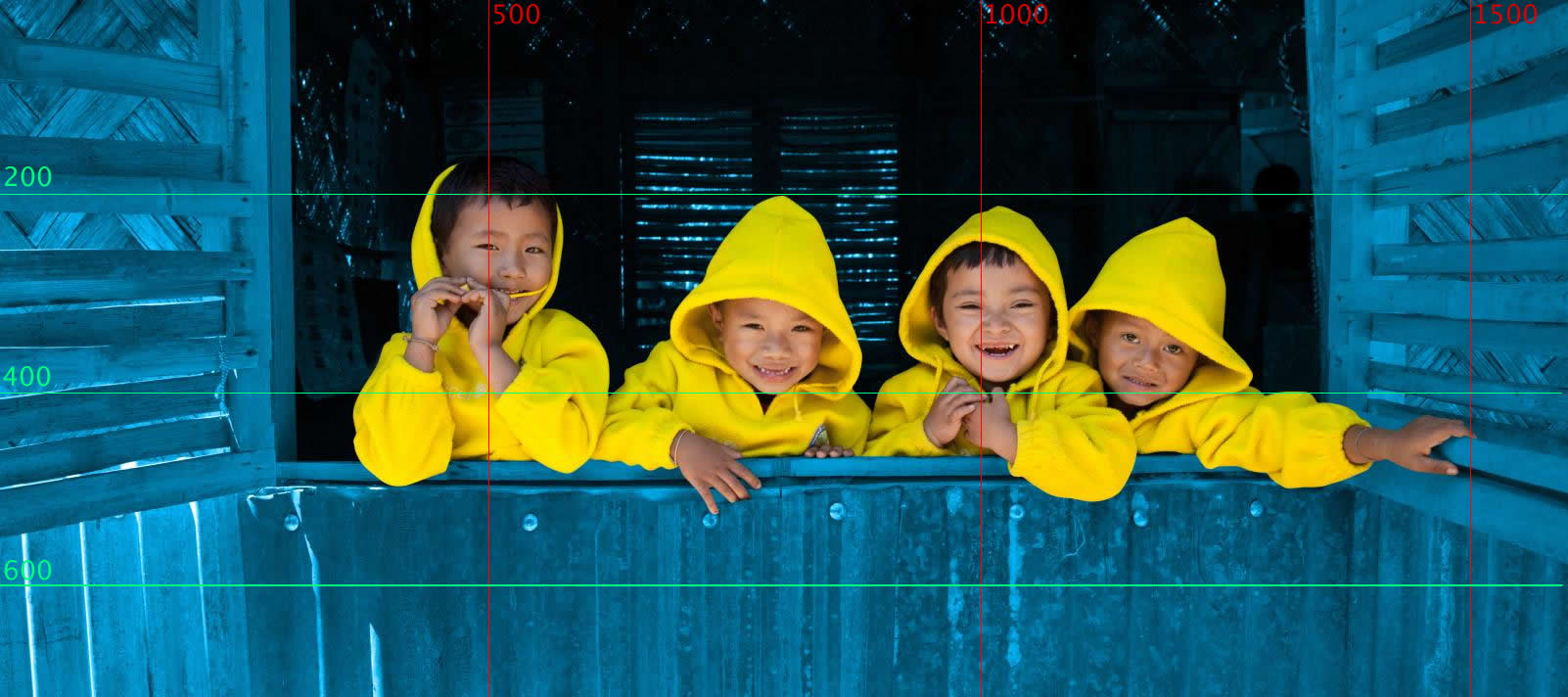
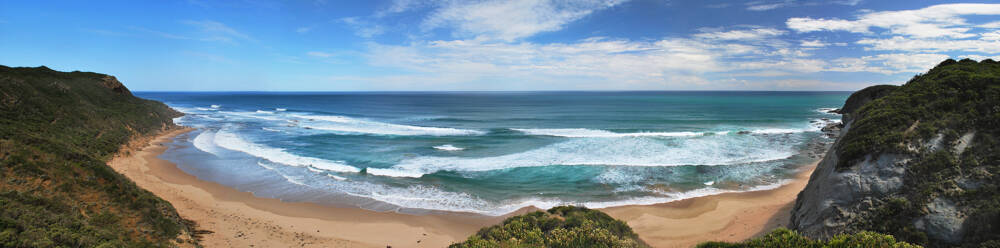
 ```
{% endcode %}
If you have implemented responsive design with the HTML `
```
{% endcode %}
If you have implemented responsive design with the HTML `
 ```
#### With Cloudimage
```html
```
#### With Cloudimage
```html
 ```
Notice that the URLs have been appended `https://token.cloudimg.io/` to ensure CDN delivery and optimization of images.
#### With Cloudimage and Use Mode as "JavaScript Mode"
```html
```
Notice that the URLs have been appended `https://token.cloudimg.io/` to ensure CDN delivery and optimization of images.
#### With Cloudimage and Use Mode as "JavaScript Mode"
```html
 ```
**Cloudimage** will:
* The `ci-src`(
```
**Cloudimage** will:
* The `ci-src`( ```
### **Example 2**
If your image is currently delivered via:
```js
```
### **Example 2**
If your image is currently delivered via:
```js